Web Application | Mobile Application (android, ios)
If you want this platform or have any questions / doubts then feel free to reach us.
Website Form
Contact Us
Email: info@whitepel.com
Web: wwww.whitepel.com
Whatsapp: Chat Now
Telegram: Chat Now
Live Demo
Contact us for login credential
Reliability is the key factor when it comes to running a School Management System. Any lag or disturbance can affect your reputation. And we completely understand this responsibility from our 20 years+ of experience in working in this field. We know every nitty-gritty detail of this respected industry.
With our experience and state-of-the-art interface designs, we have created EdPel in School Management ERP System which is extremely reliable, intuitive, and easy to use. It can cater to all your needs of managing school, college, and any other educational institution eliminating the tedious manual processes.
Features
Features
Features Module:
- Lesson Plan
- Chat Module
- Single Student Multi-class Allow
- Menu Manager
- Admin Section
- Student Info
- Academics
- Study Materials
- Fees Collections
- Accounts
- Human Resource
- Leave Management
- Examination
- Online Examination
- Home Work
- Communication
- Library
- Inventory
- Transportation
- Dormitory
- Reports
- Role and Permission
- System Setting
- Style
- Website Setting
- One-click Update
- And many more..
Teacher Panel Features:
• Add Homework
• Evaluation Report
• Upload Content
• Assignments
• Study Material
• Syllabus
• Other Downloads
• Teacher
• Managing students
• Managing exam marks
• Managing attendance
Parents Panel Features:
• Get children marks
• Get children payment invoices
• Get children class routine
• Messaging with teachers
• Childs attendance tracking
Student Panel Features:
• Get class routine
• Get exam marks
• Get attendance status
• Get study materials / files from teacher
• Get payment invoices, pay online
• Communicate with teacher
• Online Exam
• Online Class
Admin Section:
• Admission Query
• Visitor Book
• Phone Call Log
• Postal Receive
• Postal Dispatch
• Complain
• Admin Setup
• Student Certificate
• Generate Certificate
• Student ID Card
• Generate ID Card
Student Info:
• Student Category
• Add Student
• Student List
• Student Attendance
• Student Attendance Report
• Subject Wise Attendance
• Subject Wise Attendance Report
• Student Group
• Student Promote
• Disable Student
Academics:
• Optional Subject
• Section
• Class
• Subject
• Assign Class Teacher
• Assign Subject
• Class Room
• Class Time Setup
• Class Routine
Study Material:
• Upload Content
• Assignment
• Syllabus
• Other Download
• PDF View
• Image Preview
• Video Preview
• Upload support: jpg,png,jpeg,pdf,doc,docx,mp4,mp3
Lesson Plan:
• Lesson
• Topic
• Topic OverView
• Lesson Plan
• Lesson Plan Overview
• Can create multiple section at a time
• Student Panel
Fees collection:
• Fees Group
• Fees Type
• Fees Master
• Fees Discount
• Collect Fees
• Search Fees Payment
• Search Fees Dues
• Bank Payment
• Fees Carry Forward
• Report
- Collection Report
- Monthly Collection Report
Accounts:
• Account Dashboard
• Profit
• Income
• Expense
• Search
• Account List
• Payment Method
• Bank Account
• Payment History
Human Resource:
• Staff Directory
• Staff Attendence
• Staff Attendence Report
• Payroll
• Payroll Report
Examination:
• Marks Grade
• Exam Time
• Exam Type
• Exam Setup
• Exam Schedule
• Exam Attendance
• Mark Register
• Send Mark by SMS
• Exam Setup role: Final Mark from multiple Exam
• Format Setting
Oneline Exam:
• Marks Grade
• Question Bank
- Multiple Choise
- True False
- Fill in the Blank
• Online Exam
Homework:
• Add Home Work
• Home Work List
• Home Work Evaluation Report
Chat:
• Chat Box
• Invitation
• Blocked User
• Setting
- Pusher or jQuery
- Can Teacher Chat With Parents
- Admin Can Chat Without Invitation
- Can Student Chat With Admin, Accounts
- Open Chat System
- Invitation Requirement
- Can Upload File, Size Limit
- Can Make Group
- Teacher Can Pinned Top Message
- Can Staff or Teacher Ban Student
Communicate:
• Notice Board
• Send Massage
• Send Email/Sms
• Email/Sms
• Event notice
• Event Logs
• Holiday notice
Library:
• Add Book Book List
• Add Member
• Member listing & manage
• Book category/list
• Issue/Return Book
• All Issued Book
• Card issuing
Inventory:
• Item Category
• Item List
• Item Store
• Supplier
• Item Receive
• Item Receive List
• Item Sell
• Item Issue
Transport:
• Routes
• Vehicle
• Assign Vehicle
• Student Transport Report
• Schedule/Routine
Dormitory:
• Dormitory Rooms
• Dormitory
• Room Type
• Rooms monitoring
• Student Dormitory Report
Reports:
• Student Report
• Guardian Report
• Student History
• Student Login Report
• Fees Statement
• Balance Fees Report
• Class Report
• Class Routine
• Exam Routine
• Teacher Class Routine
• Merit List Report
• Oneline Exam Report
• Mark Sheet Report
• Tabulation Sheet Report
• Progess Card Report
• User Log
• Previous Result
• Previous Record
System Settings:
• General Settings
- Promote student without exam
• Email Settings
• Payment Method Settings
• Role Permission
• Base Group
• Base Setup
• Academic year
• Session
• Holiday
• SMS Settings
• Weekend
• Language Settings
• Backup
Front CMS
• Header Menu Manager
• Home Page
• News Heading
• News Category
• News List
• Course Heading
• Course Details Heading
• Course Category
• Course List
• Testimonial
• Contact Page
• Contact Message
• About Us
• Social Media
• Page – Create unlimited pages
• Footer Widget
Dashboard
EdPel Dashboard

1 & 3. Dashboard
At the top menu of left sidebar is Dashboard. There are several view port in dashboard. we can see the number of students, teachers and staff etc. at a glance. Summary of the Income and Expenses is very important for ERP system. After login a user can see the update for that day.
2. Website
From dashboard a user can easily return to own website home page.
4. Reports
Reports section is very important in this School Management ERP. You can go to report section from all over the system.
5. Academic year
Academic year , You can easily check your Academic data by selected the session
6. Select Style
At The Top right corner of the screen click STYLE Button : SELECT STYLE,DEFAULT,LAWAN GREEN.
7. Language
InfixEdu delivered to you equiped with diffrent languages : English, Arabic (RTL), French, Dutch, German, Hindi, Italian, Turkish,Russian, Spanish & Portuguse etc. You can also add laguage with your own customization.
8 & 10. Notification
If super admin or teachers set any task for student, then it will automaticaly send notifications to Teachers, Students (All students or specify class's students) and parents also you can track sent messages .
9. Chat Box
Chat Box, there is a new feature in InfixEdu application so it can send messages to the users.
11. Profile
The user can see their profile, change their existing password. Logout button at the bottom of this profile section.
12. Number of students
Super admin can view total numbers of students
13. Number of teachers
Super admin can view total numbers of teachers
14. Number of Parents
Super admin can view total numbers of parents
15 . Number of Staffs
Super admin can view total numbers of staffs
16 . Income and expenses for current month
Super admin can view total amount Income and Expenses for current month .On this chart , super can view total income ,total expenses total profit & total revenue
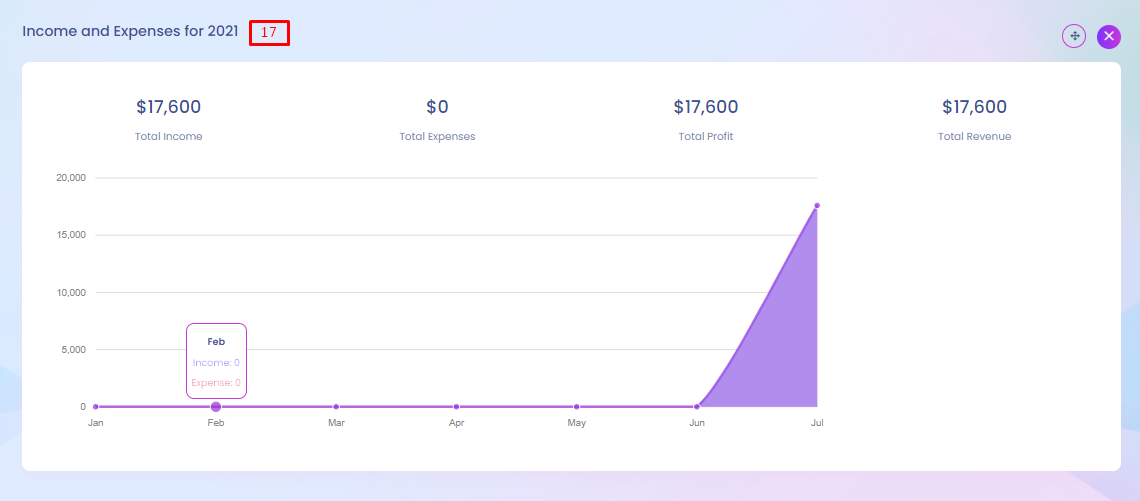
17 . Income and expenses for year
Super admin can view total amount Income and Expenses for year .On this chart, super can view total income ,total expenses total profit & total revenue
18 . Notice board
In the notice board, super admin , admin can check notice lists
19 . Add notice
To add new notice ,click add button

20 . Calender
By calendar we will represent daily tasks, events and schedule at one daily basis and also start date to end date.
21. To Do List
In the notice board ,super admin can view incomplete or completed task

22. Add to do list
To add new to list , you have to submit tiltle name & date
Menu Manage
Menu Manage

1 . Menu Position
Super admin can setup menu different criteria which are sorted by their type.
2 . Toggle Option
Select toggle option that you want to use as sub menu item and added them to the menu area.
Admission Query
EdPel Admission Query


1. Add Admission Query
Super Admin can add admission query.In the admission query all the details information of query should have to submit.
2. Search Admission Query
Admission query can be searched through certain date to date, information source and which are active or not.
3. Select Actions
In the actions option,if super admin wants, he can add next follow up query,edit and delete of a particular query.
4. Follow up Admission Query
If needed several follow up admission query can be added.That will be also listed in the follow up list and if he will want, he can delete it.
Visitor Book
EdPel Visitor Book

1. Add Visitor
For store how much visitors visit everyday and their information, super admin can add their detail information and that is shown in the visitor list.
2. Select Actions
In the visitor list, edit, delete and download visitor information is possible.
Complaint
EdPel Complaint
1. Add Complaint
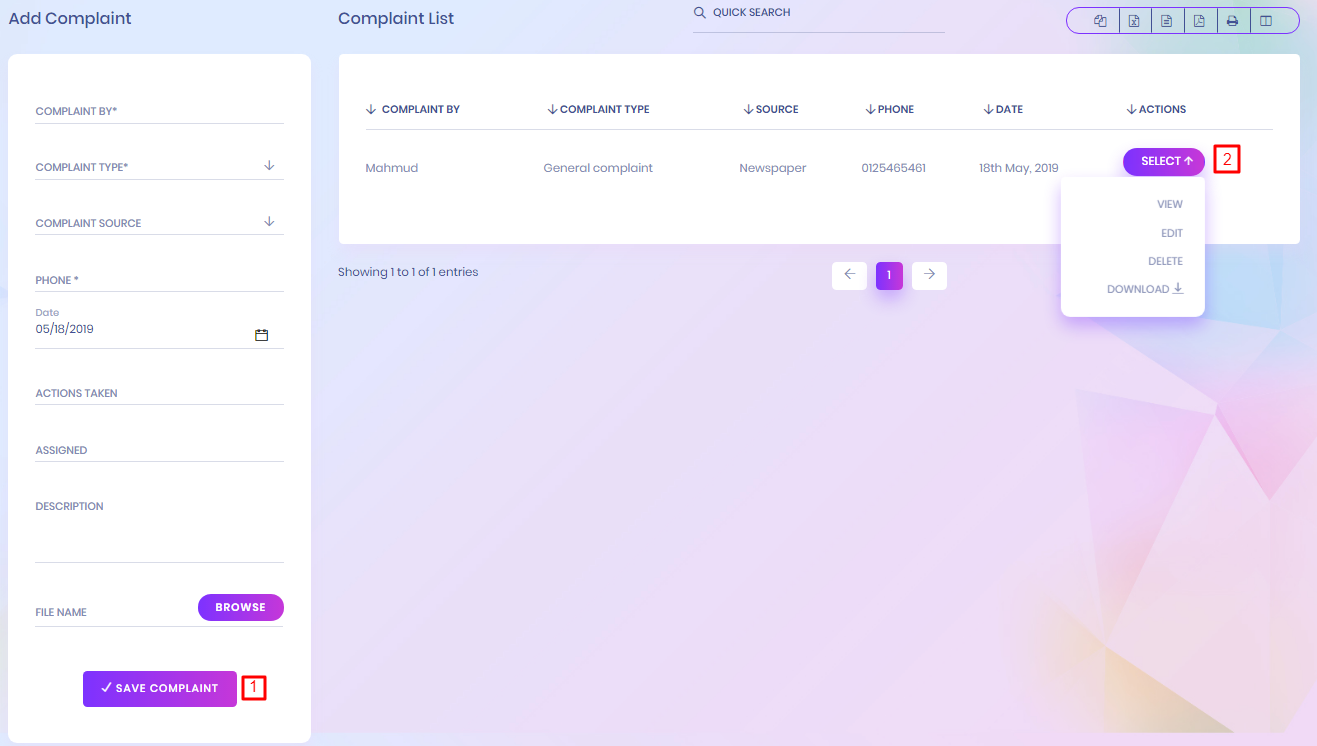
If anyone complain that can be listed by adding the complaint. Complaint includes who complains, which type of complaint is it etc.
2. Select Actions
In the complaint list several actions are included which are view the complaint details, edit and delete.
Postal Receive
EdPel Postal Receive

1. Add Postal Receive
Super admin can add which postal are received. Here includes postal comes from and where it will go and several things.
2. Select Actions
Super admin can edit and delete the postal receive information.
Postal Dispatch
EdPel Postal Dispatch
1. Add Postal Dispatch
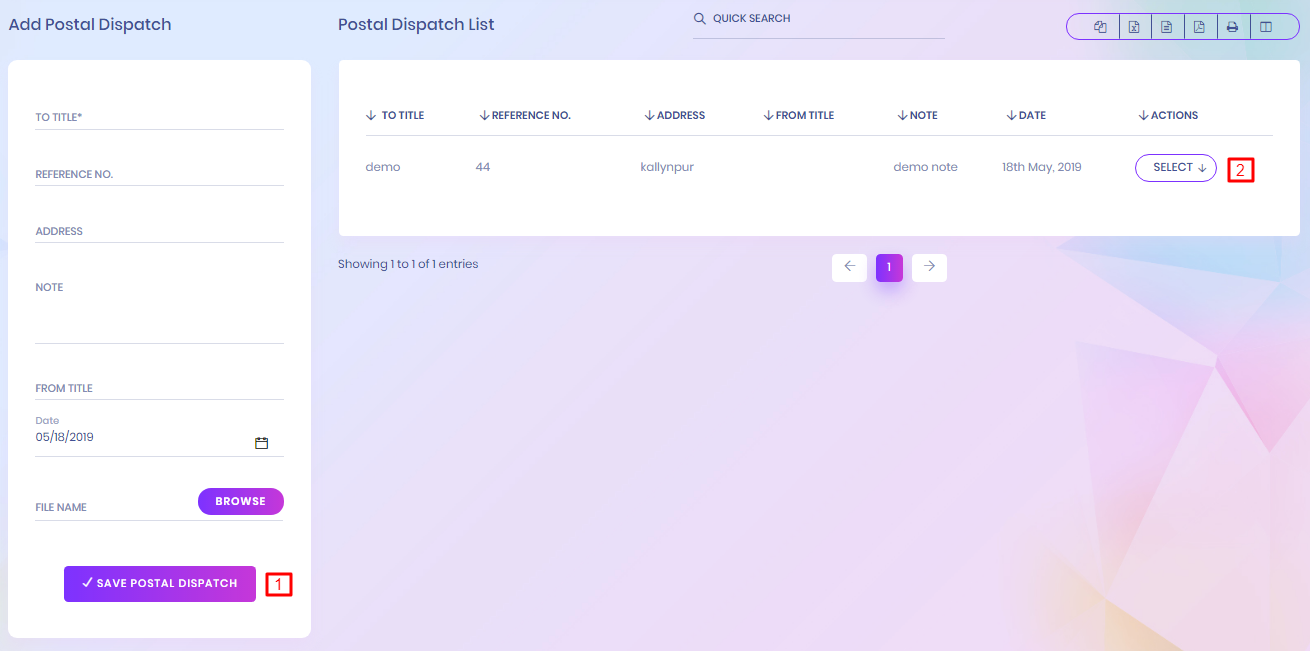
The postal where will go, it can be added by super admin. Sender and receiver information are includes here.
2. Select Actions
Super admin can edit, delete and download the postal dispatch information.
Phone Call Log
EdPel Phone Call Log

1. Add Phone Call
Super admin can able to add the phone call log. In this call log, All incoming, outgoing and it's call duration, date, next follow up date and all the details information are included.
2. Select Actions
Super admin can edit, delete the phone call log information.
Admin Setup
EdPel Admin Setup
1. Add Admin Setup
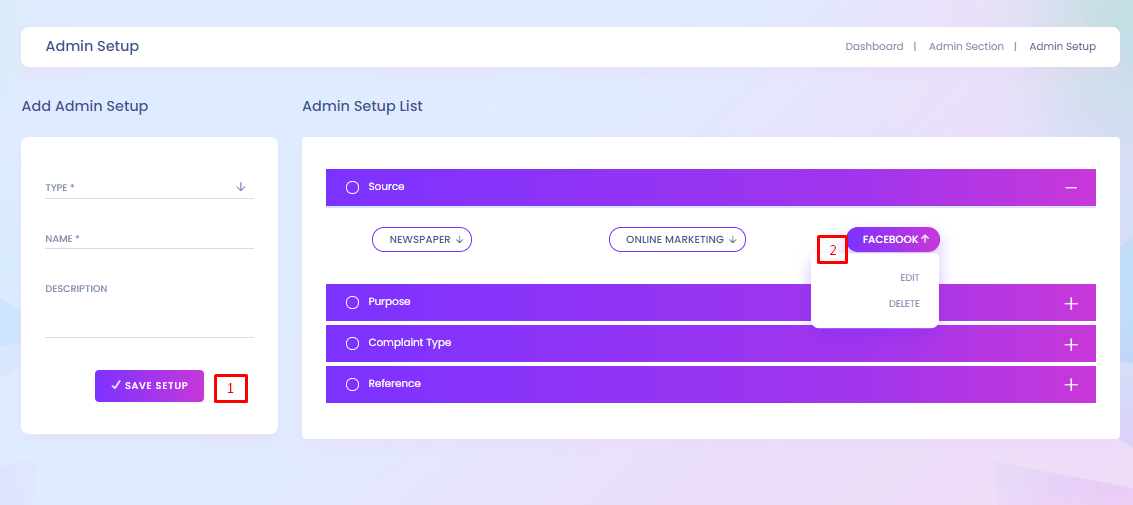
In the admin setup, super admin can add different criteria which are sorted by their type. The types are source, purpose, complaint type, reference.
2. Select Actions
The data list can be deleted and edited by super admin.
Student Certificate
EdPel Student Certificate

1. Add Student Certificate
Super admin can add student certificate. Certificate name and background image is mandatory field in this section.
2. Select Actions
The Student Certificate list can be viewed, deleted and edited by super admin.
Generate Certificate
EdPel Generate Certificate

1. Search Generate Certificate
To search student list, super admin should have to select class name, section name and which certificate he wants to generate.
2. Student List
Student ID Card
EdPel Student ID Card

1. Add Student ID Card
To add student id card, id card title, logo of institution, designation of the person whom id card will generate, signature of the person is must needed to include.
2. Select Actions
The Student id card list can be viewed, deleted and edited by super admin.
Generate ID Card
EdPel Generate ID Card

1. Search Generate ID Card
To search student list, super admin should have to select class name, section name and which id card he wants to generate.
2. Student List
In the list, view student's detail information
Student Admission
EdPel Student Admission


1. Import Student
For importing new student, super admin have to click the import student button.
2. Add Parents
For adding new student, super admin have to fill up all the major and pros and cons information. In this case, if new student has any sibling then super admin can able to add the sibling by clicking Add Parents button.
3. Relation With Guardian
Who will take the responsibility that have to include in this form. Before admin super admin have to specify the relation with the student.
4. Add Student
After adding all the information correctly then super admin can able to add the new student by clicking the save student button.
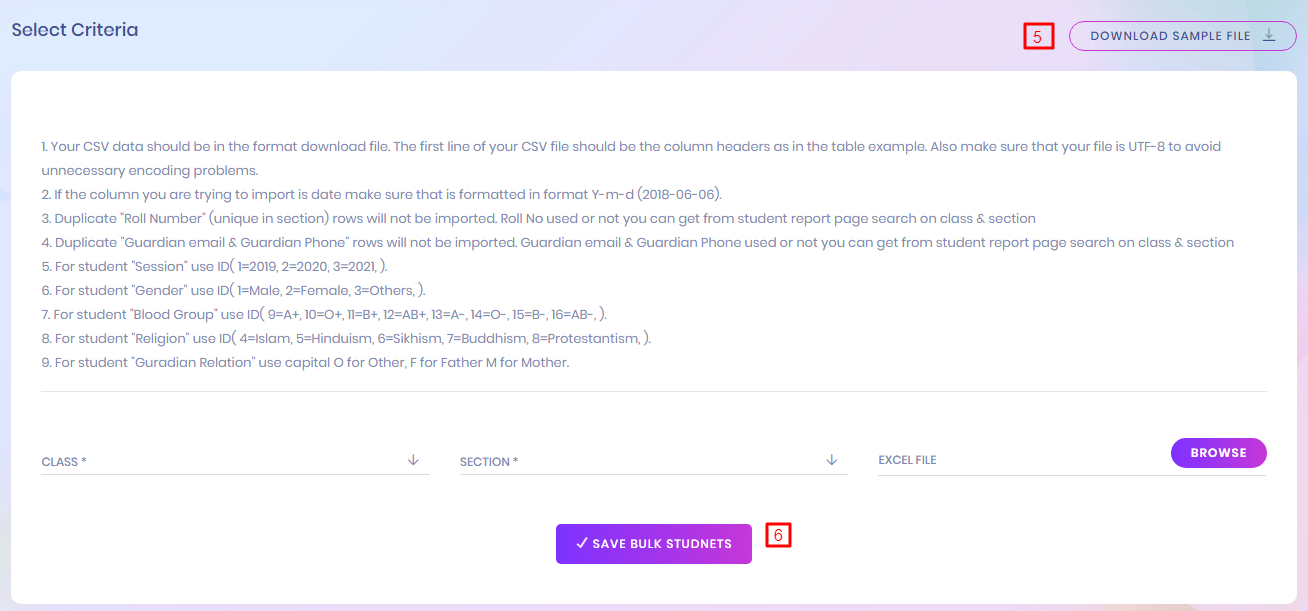
5.Download Sample File
Before import new student information, by clicking the download sample file, super admin can download the sample student information excel file.
6.Student Import
For import external information file, super admin have to select the class, section and attach the excel file.
1. Bulk Import of Students
Students can be imported from a csv file for adding multiple students at a time. Form the admin panel, under the menu student information, you can get a sub menu 'Student Admission'.
2. Add Parents
3. Relation With Guardian
4. Add Student/ Admission
Admitting new students to the school can be done from ‘admit student’ submenu under ‘student’ in the navigation. For adding a student, admin will need to fill up the information required and provided by the admission form. It should be kept in mind that, admitting new student will automatically create an enrollment in the running session for the selected class. One Student Can Be enroll Multiple Class,Section . When insert new student if found exit which email/phone number given. it will assign multiple class,section not add as a new student.
4.Download Sample File
4.Student Import
Clicking there will lead you to a new page. The method of importing is cited on that page. Follow those to successfully import students using a csv file.
Student List
EdPel Student List

1. Add Student
To add a new student, just click the right-top add click button.
2. Search Student
For searching the individual student have to select the class, section, student name or student roll id. By selecting the class and it's section can able to see the particular section's student list.
3. Select Student
In the list, view student's detail information,edit and delete are included in action column.
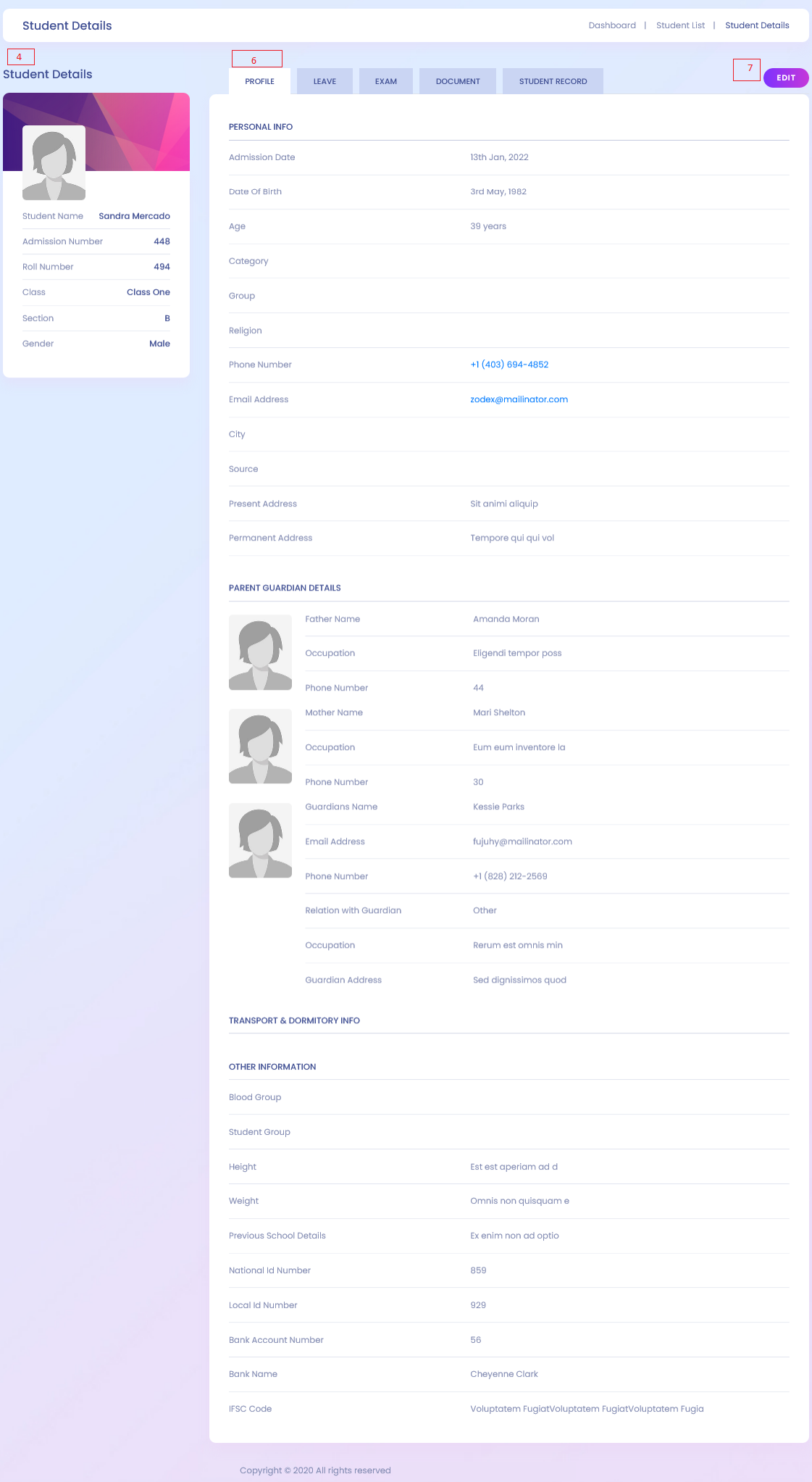
4. Student Details
By clicking the view option in action column, super admin can enter the student's details information page. Where he can able to see the student's details information in different classification.
5.Sibling Information
Sibling information is also included in this student detail information page.
6.Student Profile
Student information is classified in different section, student profile is one of them. All the personal information are shown in this student profile section.
7.Edit Student
If wants, it's possible to edit the student information by clicking the top-rightedit button.
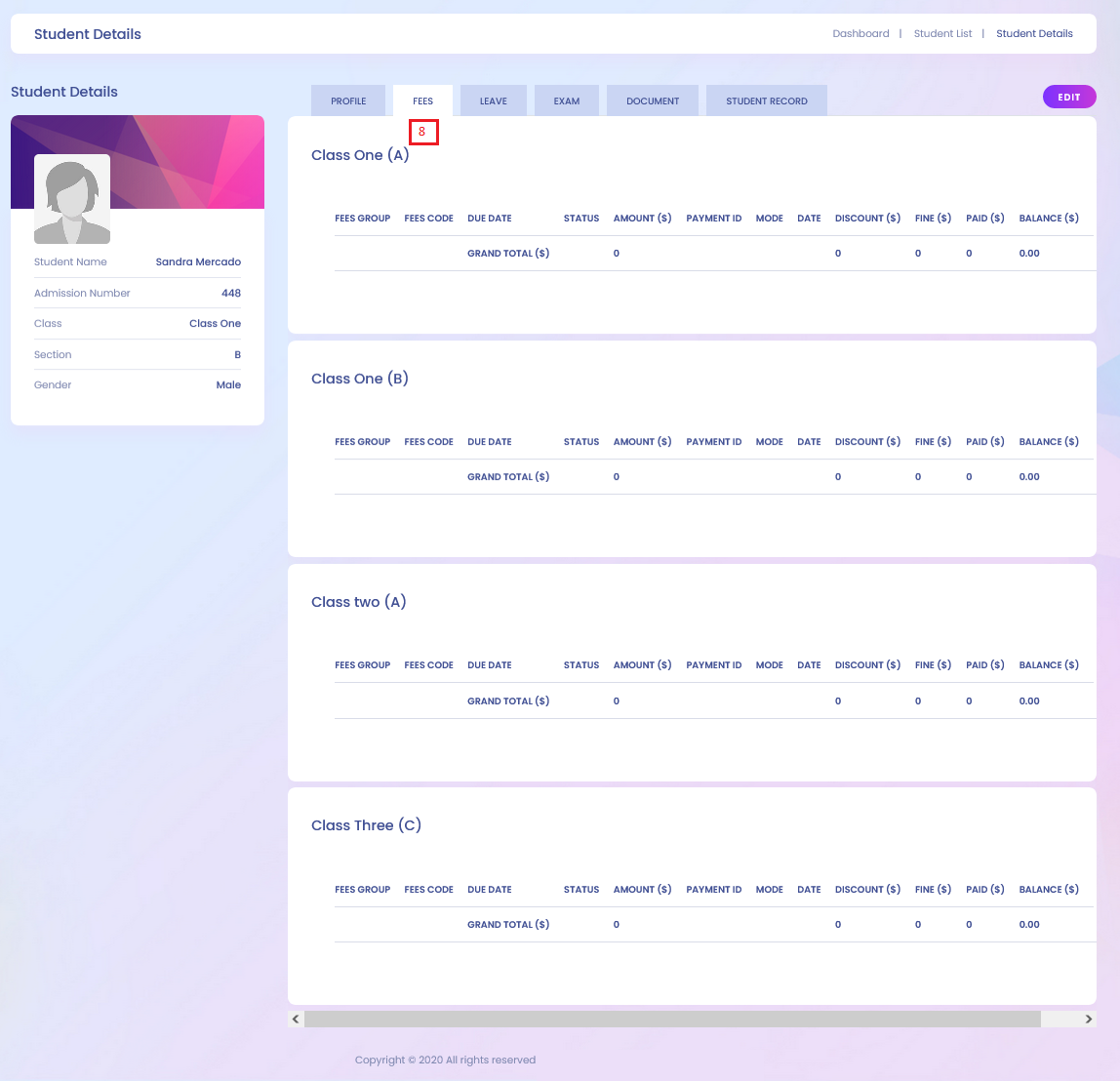
8.Student Fees
All the particular student fees information are shown in this portion If New Fees Module Disable.

9.Leave
All the particular student all the leave information are shown in this Leave portion.
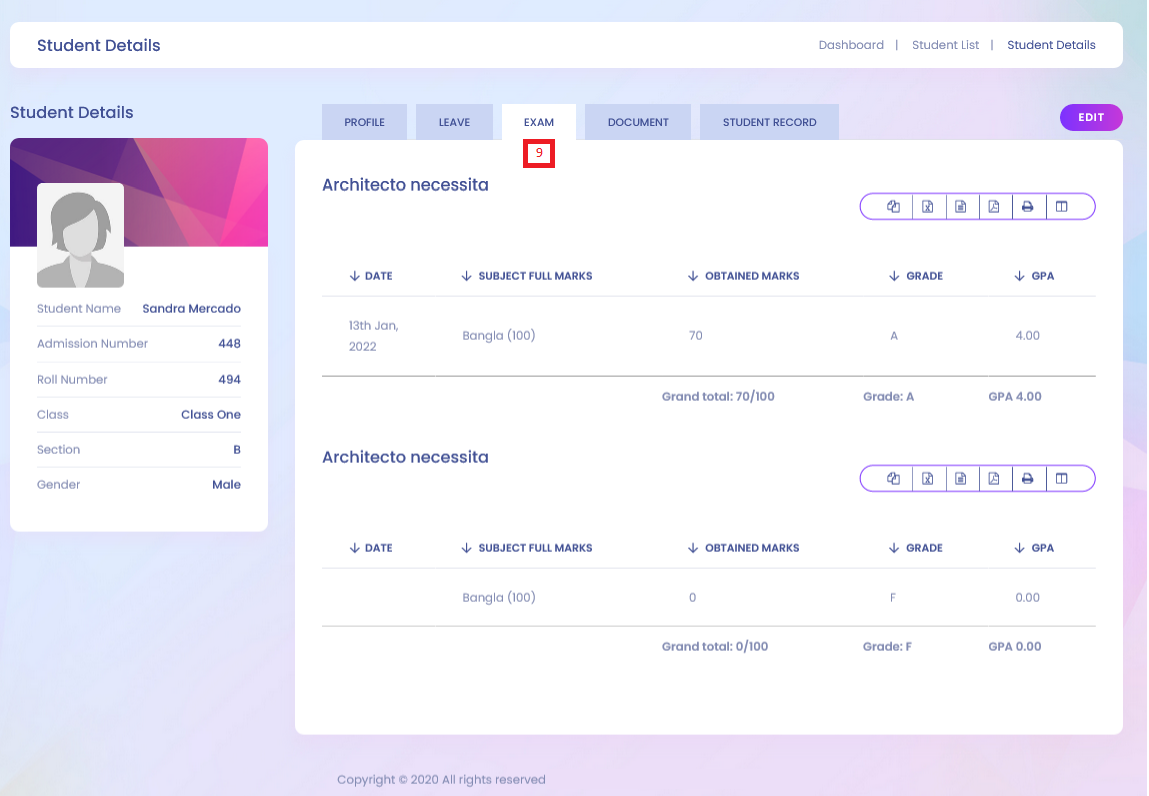
10.Exam
All the particular student all the exam information are shown in this exam portion.

11.Document
All the particular student all the document information are shown in this document portion.

12.Student Record
This Portion , Assign Multiple Classes,Sections for A student. if click is default , it will be default Class, Section
13.Student Class,Section,Roll
This Portion , Assign Multiple Classes,Sections for A student. if click is default , it will be default Class, Section
Student Attendance
EdPel Student Attendance

1. Search Student Attendance
To search the student attendance, class, section and the attendance date. Daily attendance is shown on the menu class wise. For taking or viewing attendance for a particular class, firstly admin will need to select the date and the section which will bring the attendance managing form for that class section for that particular date.
2. Mark Holiday
If the searched day is holiday then super admin can able to mark the day as holiday by check the mark holiday button.
3. Save Attendance
Super admin can able to add attendance students. If anyone absent then check the absent, if present then check the present. Late and half day also can be checked.
Student Attendance Report
EdPel Student Attendance Report

1. Search Student Attendance Report
To search the student attendance report, class, section, month and year should have to select.
2. Select Student for Report showing
The search result will show in this report. If wants to see the individual students attendance then just click on the '+' symbolic button then see the all the days of a month report.
Subject Wise Attendance
EdPel Subject Wise Attendance

1. Search Subject Wise Attendance
To search the Subject Wise attendance, you have to select class, section ,subject and the attendance date.
2. Mark Holiday
If the searched day is holiday then super admin can able to mark the day as holiday by check the mark holiday button.
2. Save Attendance
Super admin can able to add attendance students. If anyone absent then check the absent, if present then check the present. Late and half day also can be checked.
Subject Attendance Report
EdPel Subject Attendance Report

1. Select Criteria
To search the subject attendance Report, you have to select class, section ,month and year.
Student Category
EdPel Student Category

1. Add Student Category
For adding student category, student type have to added.
2. Select Actions
super admin can able to edit and delete the student category list.
Student Group
EdPel Student Group

1. Add Student Group
For adding student group, student group name have to added.
2. Select Actions
super admin can able to edit and delete the student group list.
Student Promote
EdPel Student Promote

1. Search Student Promote
To search student promote list, Academic Year, Promote Academic Year and class have to select.
2. Select Section
In the list, by SELECT the Section which Section Want promote.
3. Student Promote
This module is designed to promote students of a particular class to the next class in the next session. ‘Student Promotion’ submenu will be found under the menu ‘student’ in the admin panel. To promote students to the next class, admin needs to select the present class of the students and the class where he/she wants to promote the students. The present session which has been already set from the system settings will be selected automatically as the present session and the next session will be automatically calculated by the software.
Disabled Students
EdPel Disabled Students

1. Search Disabled Students
To search the disabled student list,class is required and if need to find the individual then the section, name and roll is needed.
2. Select Actions
In the disabled students list, super admin can view, edit and delete the list item.
Sms Sending Time
EdPel Sms Sending Time

Student Settings
EdPel Students Settings

1. Student Edit
If Switch Button Enable It's Means Student Can See This Field to update His/Her Information.
2. Parent Edit
If Switch Button Enable It's Means Parent Can See This Field to and update His/Her Information.
3. REQUIRED
If Switch Button Enable It's Means Field Are required For Add/Update Student Info.(You can't disable email and phone number together.one field will be auto required if you try to disable (email & phone number) together.)
Assign Optional Subject
EdPel Assign Optional Subject

1. Search Assigned Optional Subject
For searching assigns optional subjects, first you have to need to select class, section and select subjects for a particular class and it's an individual section..
2. Assigned Optional Subject List
In this list, particular subjects and it's assigned course teachers are shown. If assign new subjects just select assign Subjects .Then click Assign Subject button for saving this list
Class Routine
EdPel Class Routine

1. Search For Create Routine
In the class routine submodule, by selecting the class and section super admin can see the particular class routine. Where by clicking on the (+) symbol admin can assign the class routine.
2. Print Class routine
Print Class Routine Selecting class and section.
3. Add Row
To create class routine just click on the (+) symbol. Here have to select subject, Start Time, End time, and others fields.
4. Other Day
If You want to Set same routine for other's day click and select day routine .
5. Break Time
If it's Break time click it. .
5. Delete Routine
If want to delete click it. .
Assign Subject
EdPel Assign Subject


1. Search Assigned Subject
Select class and section for searching assigned subjects for particular class and it's individual section.
2. Assigned Subject List
In this list, particular subjects and it's assigned course teachers are shown. If assign new subjects just click the right-top assign Subject button.
3. Search Assign Subject Create
For assign subjects list, search by selecting the class and section.
4. Assign Subject Create
For assign subject select the teacher in the teacher section.By clicking the delete button, subject will be deleted.By clicking the save button the subjects will assigned.
Assign Class Teacher
EdPel Assign Class Teacher

1. Assign Class Teacher
For assigning class routine, class, section and teachers should have to select. The Assigned class teacher list will show in the Class Teacher List. Here teacher list can be edited and deleted.
2. Select
In the class teacher list, all information are shown in details. Super admin can edit & delete the teacher list.
Subject
EdPel Subject

1. Add Subject
To add subject, the subject name,the subject code should be added and check the theory or practical which type of subject is it.
Subject list can be edited and deleted by the super admin.
Class
EdPel Class

1. Add Class
To add Class, the class name and section or sections should be added.
Class list can be edited and deleted by the super admin.
Sections
EdPel Sections

1. Add Section
To add section, the section name should be added.
2. Select Section
Section list can be edited and deleted by the super admin.
Class Room
EdPel Class Room

1. Add Class Room
To add class room, room number and capacity should be added.
2. Select Section
Class room list can be edited and deleted by the super admin.
Teacher Class Routine
EdPel Teacher Class Routine

1. Search Teacher
After Select teacher and click to Search, showing teacher class routine.
Upload Content
EdPel Upload Content

1. Upload content
To upload content, content type, available for which kinds of person, date the file you want to upload.
1. Select Actions
The uploaded content are listed in upload content list. In this list, user can edit, delete ,view and download the content.
Assignment
EdPel Assignment

1. Assignment List
The uploaded assignment will be shown in the assignment list.
2. Select Actions
Delete ,download and disable options are available in the action column.
Study Material
EdPel Study Material

1. Study Material List
The uploaded study material will be shown in the study material list.
2. Select Actions
Delete and download options are available in the action column.
Syllabus
EdPel Syllabus

1. Syllabus List
The uploaded syllabus will be shown in the syllabus list.
2. Select Actions
Delete and download options are available in the action column.
Other Downloads
EdPel Other Downloads
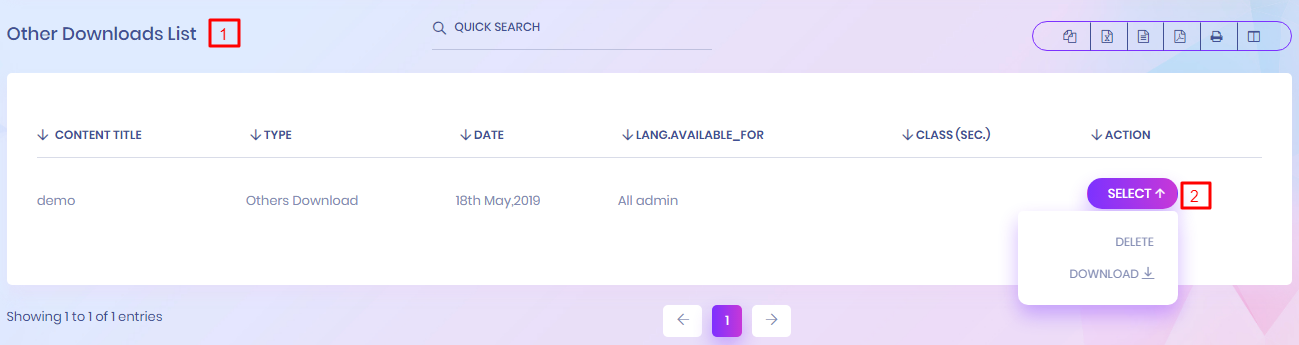
1. Other Downloads List
The uploaded other download materials will be shown in the other download list.
2. Select Actions
Delete and download options are available in the action column.
Lesson
EdPel Lesson

1. Add Lesson
To add Lesson, Select Class,Subject and the lesson name.
And Lesson added all section under selected class which section assign selected subject
2. Lesson List
In the Lesson list, lesson's all information are shown in details. Super admin can edit and delete the lesson list.
Topic
EdPel Topic

1. Add Topic
To add Topic, select the class , select section ,subject ,lesson and the topic name .
2. Topic List
In the Topic list, Topic's all information are shown in details. Super admin can edit and delete the Topic list.
Topic OverView
EdPel Topic OverView

Topic OverView
In the Topic OverView, Topic's all information are shown in details which one Complete/incomplete etc.
Lesson Plan
EdPel Lesson Plan
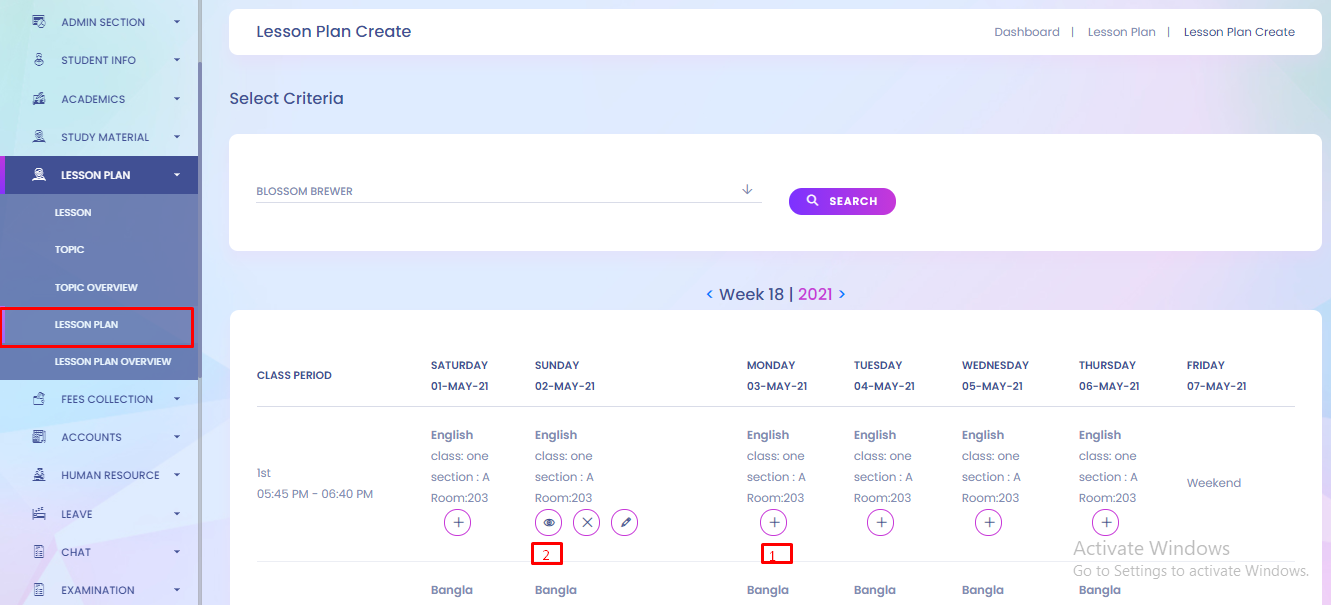
1. Add Lesson Plan
* If Teacher have No Class In Class Routine,lesson plan will be not added
In the Lesson Plan submodule, by selecting the lesson and topic super admin can see the particular lesson plan . Where by clicking on the (+) symbol admin can assign the lesson plan .
2. View Lesson Plan

Assigned Lesson for particular day are shown on .
Click Status Toggle Button if lesson Complete/Incomplete.
3. Create Lesson Plan

To create class Lesson Plan just click on the particular period of a day. Here have to select lesson, topic and others in list.
Lesson Plan Overview
EdPel Lesson Plan Overview

Lesson Plan Overview
By clicking the Lesson Plan Overview Super Admin Can See Teahcer Lesson Plan Progress and others status about His Lesson Plan.
Lesson
EdPel Lesson
1. Add Lesson
* If Teacher have No Class In Class Routine,He Can't add lesson Plan
To add Lesson, Select Class,Subject and the lesson name.
Teacher Can Add only His Class and Subject.
And Lesson added all section under selected class which section assign selected subject
2. Lesson List
In the Lesson list, lesson's all information are shown in details. Teahcer Can edit and delete the lesson list.
Topic
EdPel Topic
1. Add Topic
To add Topic, select the class , select section ,subject ,lesson and the topic name .
2. Topic List
In the Topic list, Topic's all information are shown in details. Teacher can edit and delete the Topic list.
My Lesson Plan
EdPel My Lesson Plan

1. Add Lesson Plan
In the Lesson Plan submodule, by selecting the lesson and topic Teahcer can see the particular lesson plan . Where by clicking on the (+) symbol admin can assign the lesson plan .
2. View Lesson Plan
Assigned Lesson for particular day are shown on .
Click Status Toggle Button if lesson Complete/Incomplete.
3. Create Lesson Plan
To create class Lesson Plan just click on the particular period of a day. Here have to select lesson, topic and others in list.
My Lesson Plan Overview
EdPel My Lesson Plan Overview

My Lesson Plan Overview
By clicking the My Lesson Plan Overview Teahcer Can See His Lesson Plan Progress and others status about His Lesson Plan.
Fees Group
EdPel Fees Group

1. Add Fees Group
To add fees group, name is required. The fees group represents which kinds of fees should have to pay by students.
2. Select Actions
In the fees group list, edit and delete is available.
Fees Type
EdPel Fees Type

1. Add Fees Type
To add fees type, name and fees code are required. The fees group represents which types of fees should have to pay by students.
2. Select Actions
In the fees discount list, edit and delete is available.
Fees Invoice
EdPel Fees Invoice

1. Add Fees Invoice
Here Can Add Invoice, name and fees code are required. The fees group represents which types of fees should have to pay by students.

After Selecting Class,Student,Payment Method ,Fees Type,Amount Then Click Save Button.After Click Invoice will be generate
1. Clone Amount
if Click, First input value Set All Field
2. Select Actions
In the lists View payment, View and Add Payment is available.
Bank Payment
EdPel Bank Payment
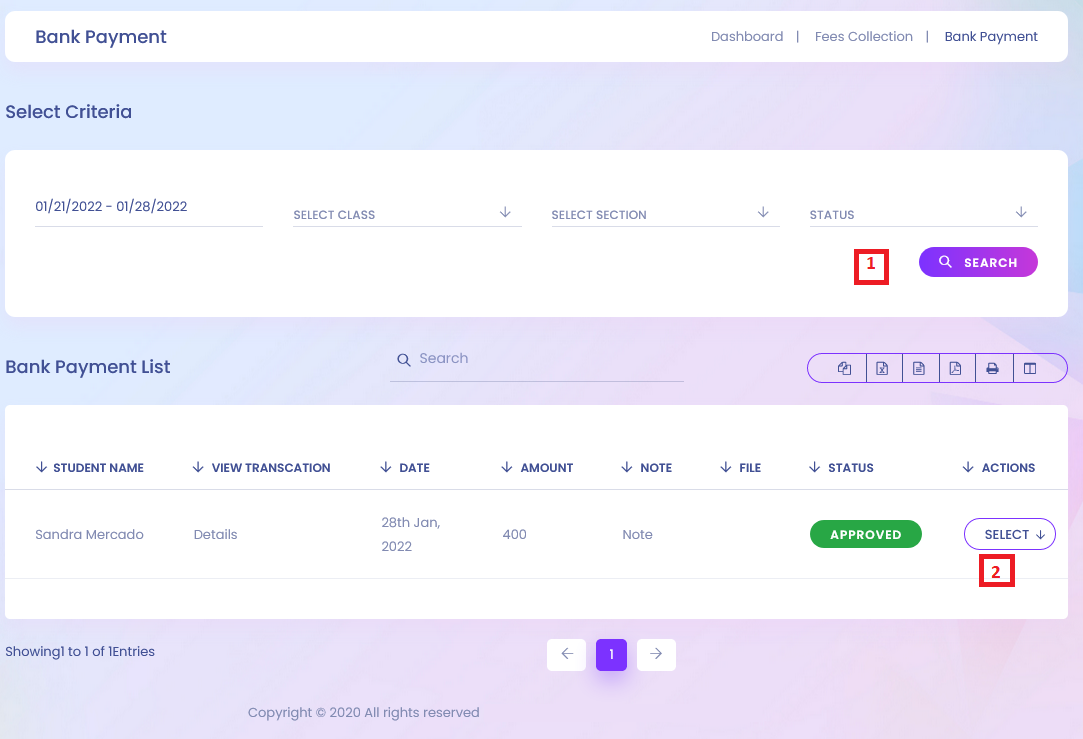
1. Search Bank Payment
To search bank payment, have to select class ,section, payment date & status.
2. Select Actions
Search result will show the selected payment id's all payment information.
FeesInvoice Settings
EdPel FeesInvoice Settings

FeesInvoice Settings, generate invoice number adn invoice attribute.
Fees Due Report
EdPel Fees Due Report

01.Search
After Selecting and Click Search See that Reports.
Fine Report
EdPel Fine Report
01.Search
After Selecting and Click Search See that Reports.
Payment Report
EdPel Payment Report
01.Search
After Selecting and Click Search See that Reports.
Balance Report
EdPel Balance Report
01.Search
After Selecting and Click Search See that Reports.
Waiver Report
EdPel Waiver Report
01.Search
After Selecting and Click Search See that Reports.
Wallet Deposit
EdPel Pending Deposit

1. Pending List
Pending Deposit showing, student request to add wallet
2. Approve/Reject
Admin can Approve / Reject wallet Request
Wallet Deposit
EdPel Approve Deposit
1. Approve List
Approve Deposit showing, student request to add wallet
2. Approve/Reject
Admin can Approve / Reject wallet Request
Wallet Deposit
EdPel Reject Deposit

1. Reject List
Reject Deposit showing, student request to add wallet
2. Approve/Reject
Admin can Approve / Reject wallet Request
Wallet Deposit
EdPel Transaction Deposit

Wallet Deposit
EdPel Report Deposit

1. Search
*After Select and Click to Search , Can See Report
Wallet Deposit
EdPel Refund Deposit

1. Refund List
Reject Deposit showing, student request to add wallet
2. Approve/Reject
Admin can Approve / Reject wallet Request
Collect Fees
EdPel Collect Fees

1. Search Collect Fees
For Searching the fees collection list, have to select the class and for specific search can possible to select the section and individual information.
2. Collect Fees
Search results are shown in the fees collection list. In this list, by clicking the collect fees button, super admin can enter the add fees page.

3. Select Actions
Through student information, all the unpaid fees are listed here. In the action column add fees and print options are available.
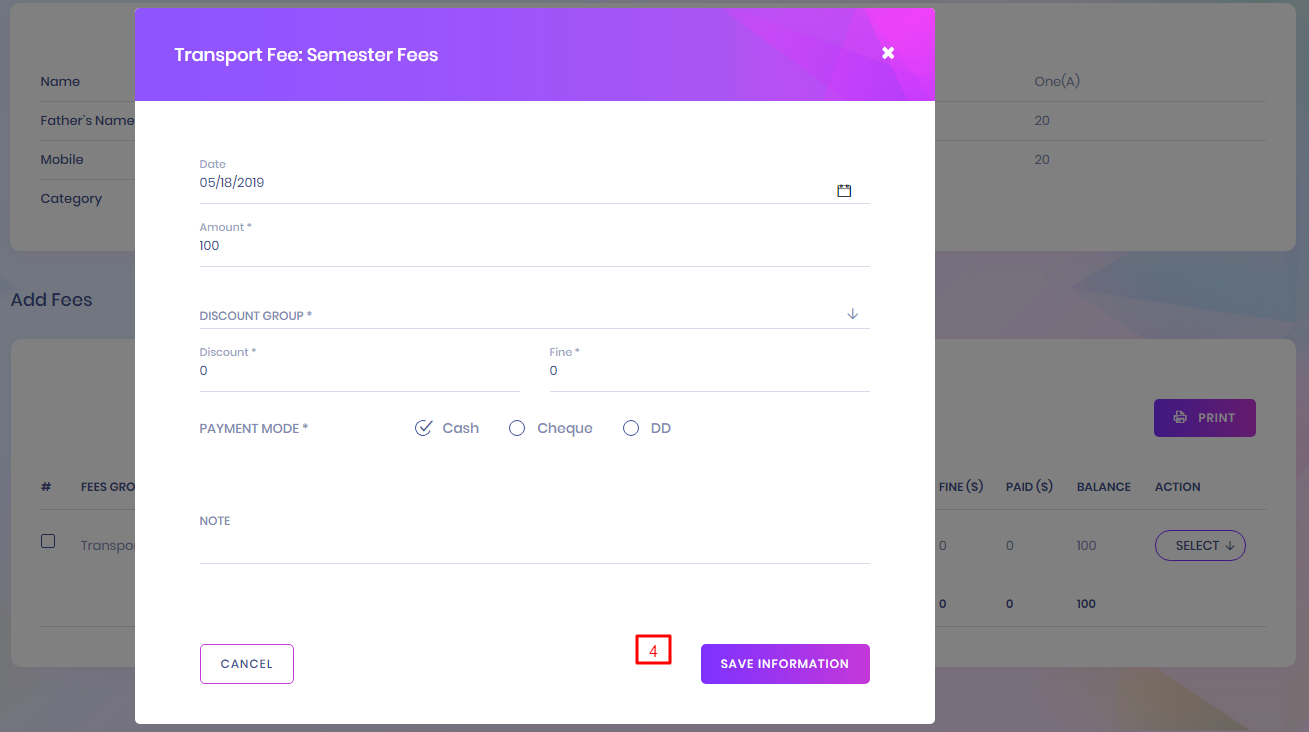
4. Add Fees
By clicking the add fees option, super admin will get the add fees page. Where date, amount, discount group, discount, fine and payment mode is required.
Search Fees Payment
EdPel Search Fees Payment

1. Search Fees Payment
To search fees payment, have to select the payment id.
2. Select Actions
Search result will show the selected payment id's all payment information. User can view the details information by clicking the view option in action column.

3. Print
In view page, the payment details are shown in the list. Print option is available in this list.
Search Bank Payment
EdPel Bank Payment

1. Search Bank Payment
To search bank payment, have to select class ,section, payment date & status.
2. Select Actions
Search result will show the selected payment id's all payment information.
Search Fees due
EdPel Search Fees due

1. Search Fees Due
To search fees due, have to select fees group ,class & section.
Fees Master
EdPel Fees Master

1. Add Fees Master
To add fees master, fees group, fees type, date and amount are required.
2. Select Actions
In the action column, assign/view and delete options are available.

3. Search Fees Assign
By clicking the assign/view, super admin can enter the fees master assign page. Where super admin can able to assign the fees group.
Fees Group
EdPel Fees Group

1. Add Fees Group
To add fees group, name is required. The fees group represents which kinds of fees should have to pay by students.
2. Select Actions
In the fees group list, edit and delete is available.
Fees Type
EdPel Fees Type

1. Add Fees Type
To add fees type, name and fees code are required. The fees group represents which types of fees should have to pay by students.
2. Select Actions
In the fees discount list, edit and delete is available.
Fees Discount
EdPel Fees Discount

1. Add Fees Discount
To add fees discount, name, discount code, type and amount are required. The fees discount represents how much discount will be provided for student in which purpose.
2. Select Actions
In the fees discount list, assign fees discount, edit and delete is available.

3. Search Fees Discount For Assign
By clicking the assign, super admin can enter the fees discount assign page. Where super admin can able to assign the fees discount.
Fees Carry Forward
EdPel Fees Carry Forward

1. Search Fees Carry Forward
To search the fees carry forward, super admin have to select class name and section.
2. Previous Session Balance Fees
Search result will show the previous session balance fees. In this list particular student's balance are shown. Here, super admin can add balance for students.
Collection Report
EdPel Collection Report

1. Search Select Criteria
To search the collection report, super admin have to select date range picker ,select class and select section.
2. Fees Collection Details
Search result will show the Fees Collection Details. In this list particular student's fee collection are shown.
Monthly Collection Report
EdPel Monthly Collection Report

1. Search Select Criteria
To search the monthly collection report, super admin have to select class ,section , month and year
Profit & Loss
EdPel Profit & Loss
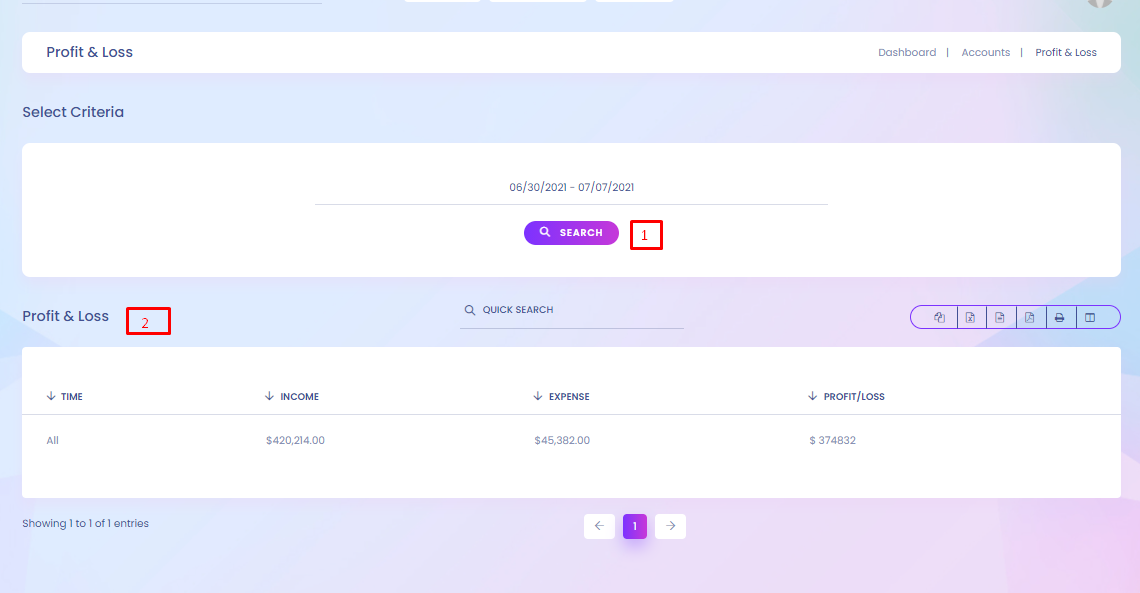
1. Search Profit & Loss
For searching the Profit & Loss list, select the certain date range means which date to date wants to see the profit & Loss list.
2. Profit & Loss List
Profit & loss list show the searched time's income, expense and profit & Loss list.
Income
EdPel Income

1. Add Income
To add income information income source name, account head, payment method, date and amount should have to include.
2. Select Actions
Edit and delete are includes in the action column in this list.
Expense
EdPel Expense

1. Add Expense
To add expense information, expense source name, account head, payment method, date and amount should have to include.
2. Select Actions
Edit and delete are includes in the action column in this list.
Fund Transfer
EdPel Fund Transfer
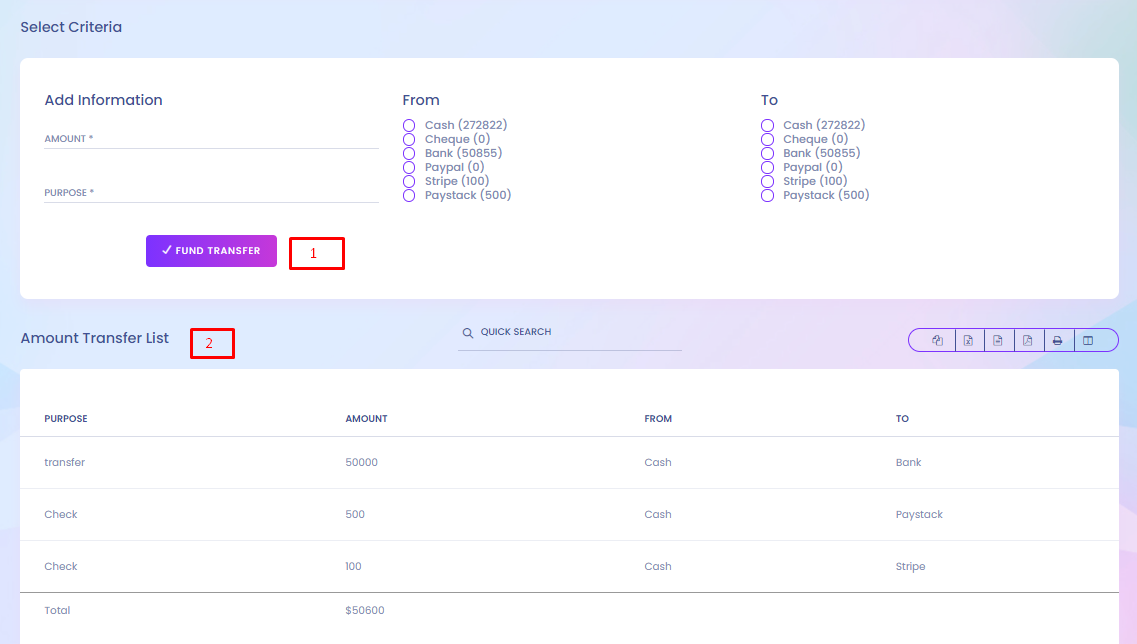
1. Add information
To add fund transfer, You should have to need to be filled up amount & purpose. It requires a minimum of two accounts to complete a transfer. One account acts as a sender and another is the receiver.
2. Amount Transfer List
On the amount transfer list section ,which will show you the list of transferred amount from one account to another.
Chart Of Account
EdPel Chart Of Account

1. Add Chart Of Account
To add chart of account, account head and account type should have to include.
2. Select Actions
Edit and delete are includes in the action column in this list.
Bank Account
EdPel Bank Account

1. Add Bank Account
To add bank account, bank name, account name, account number,account type,opening balance & note should have to include.
2. Select Actions
Transaction and delete are includes in the action column in this list.
Fine Report
EdPel Fine Report

1. Search Fine Report
For searching the Fine Report, select the certain date range ,select class & select section
2. Fine Report
Fine Report show the fine report list.
Pay Report
EdPel Pay Report

1. Select Criteria
For searching pay report, select the certain date range & then click search button
2. Payroll Report
Payroll Report show the payroll report list.
Transaction
Transaction

1. Select Criteria
For searching pay report, select the certain date range , select type ,select payment method & then click search button
2. Income Result
Income result list show particular date duration's income detail information.
Designation List
EdPel Designation List
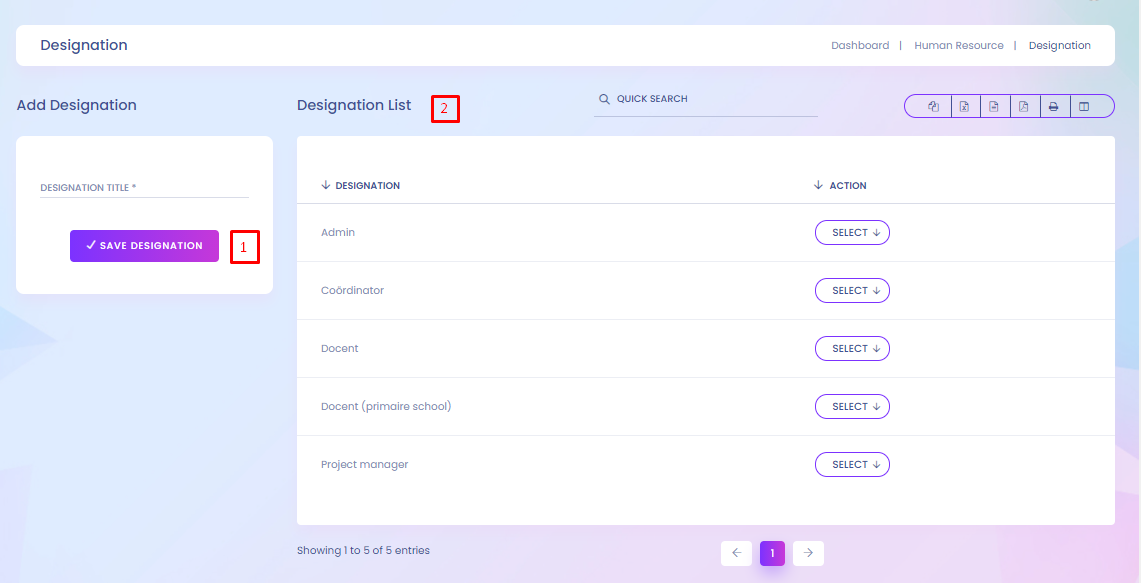
1. Add Designation
To add Designation, designation name should be added.
2. Designation List
Designation list can be edited and deleted by the super admin.
Departments List
EdPel Departments List

1. Add Departments
To add Departments, departments name should be added.
2. Departments List
Departments list can be edited and deleted by the super admin.
Staff List
EdPel Staff List

1. Search Staff List
To search the staff list,staff roles or staff id or staff name have to select.
In the action column in this list, super admin can view staff details, edit and delete the records.
2. Add Staff
By clicking the add staff button, super can enter the add staff page.


3. Add Staff
To add a staff, basic info, payroll, bank info, social links and necessary documents have to include.
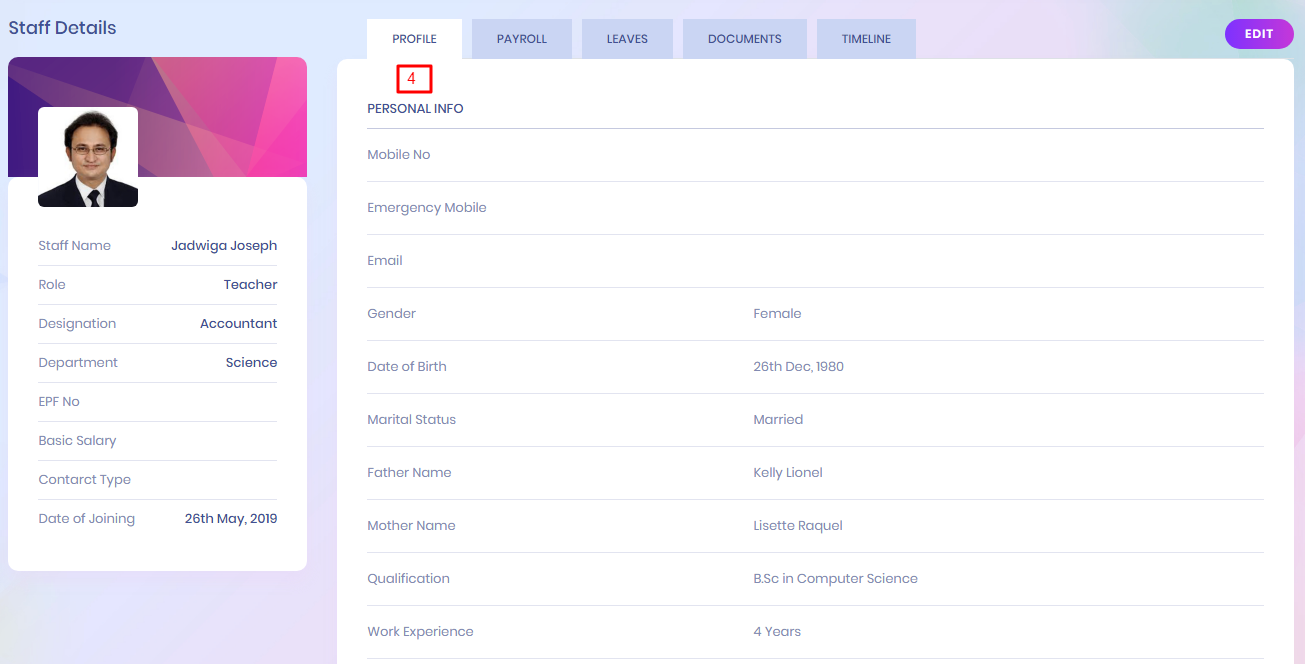
4. Profile
Staff has several types of information. His profile is one of them. In his profile all the personal information are shown.
By Clicking the right-top button edit, possible to enter in edit staff details page.If wants can easily edit the staff records.

5.Payroll
Payroll information of a particular staff are shown in this page.

6.Documents
How much and which documents are downloaded in his profile are shown here.

7.Timeline
Timeline information of a particular staff are shown in this page.
Staff Attendance
EdPel Staff Attendance

1. Search Staff Attendance
To search the staff attendance list, role and date should have to select.
2. Mark Holiday
If the selected day is holiday,then by checking the mark holiday button, the day will be marked as holiday.
3. Save Attendance
After selecting the all the functionalities, just click the save attendance button and the attendance will be recorded.
Staff Attendance Report
EdPel Staff Attendance Report

1. Search Staff Attendance Report
To search the staff attendance report,select the role, month and the year. In this list full month attendance record of a particular staff are shown.
Payroll
EdPel Payroll

1. payroll Search
For searching the staff payroll list, just select the role,month and the year.
2. Staff List
Staff payroll list show the search result. In this list, payroll status show payroll is generated or not. If not then just clicking the generate payroll super admin can enter the generate payroll page.


3. Generate Payroll
In the generate payroll page, earning, deductions, payroll summary should have to full up when generate payroll.
Payroll Report
EdPel Payroll Report

1. Search payroll Report
For searching the staff payroll report list, just select the role, month and the year.
2. Staff List
Staff payroll report list show the search result. In this list, payroll's all the information of staff are shown.
Staff Settings
EdPel Staff Settings

1. Staff Edit
If Switch Button Enable It's Means Staff Can See This Field to update His/Her Information.
3. REQUIRED
If Switch Button Enable It's Means Field Are required For Add/Update Staff Info.(You can't disable email and phone number together.one field will be auto required if you try to disable (email & phone number) together.)
Approve Leave Request
EdPel Approve Leave Request


1. Approve Status
In this submodule, apply leave lists are shown. Here which leave is approved or not yet that are shown in the status column.
2. Select Action
In this Action column, view/edit and delete options are includes.
3. View or Edit Leave Details
In this modal, super admin can see the detail and he change the approve status if he wants.
Apply Leave
EdPel Apply Leave
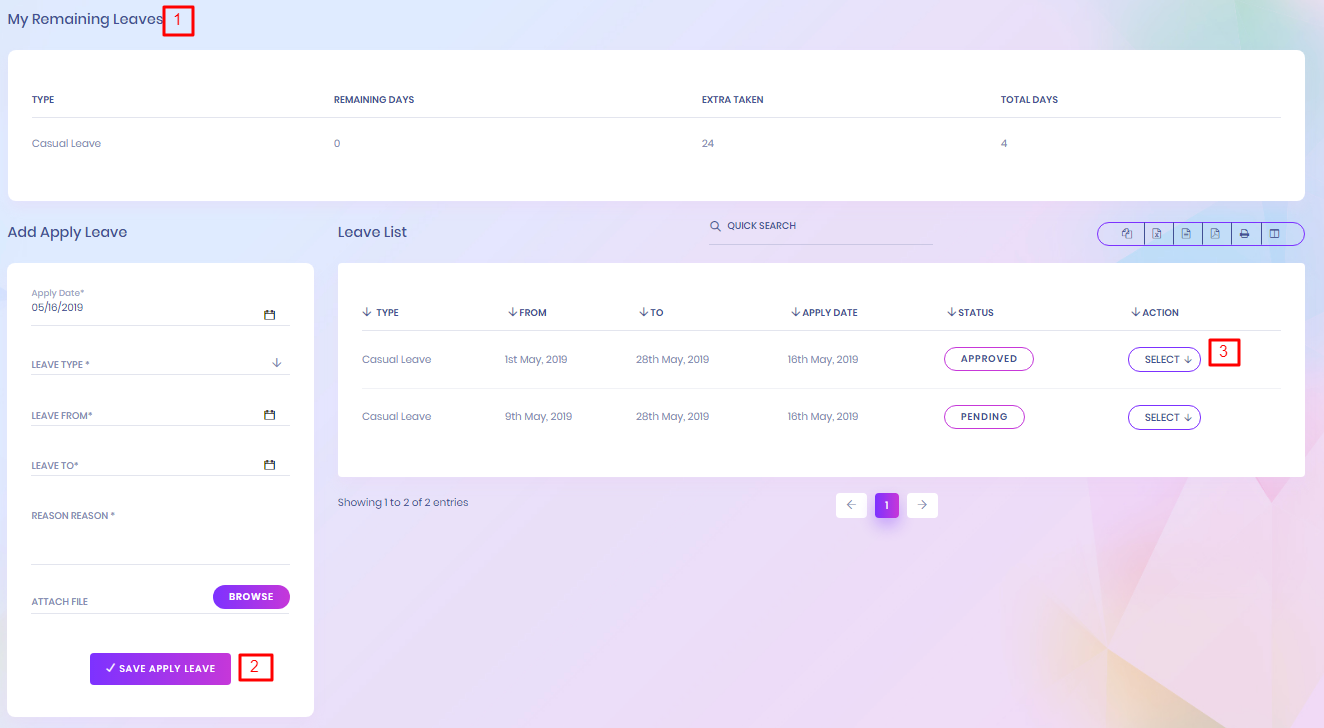

1. My remaining leave
In this list, super admin can see his remaining days of leave, extra taken leave and the total days for a particular leave type.
2. Add Apply leave
Super admin can the apply leave, by adding the date, leave type, which date to which date, the reason etc.
3. Select Action
The leave list will show all the leaves which is available.In this list, view/edit and delete options are includes in action column.
Leave Define
EdPel Leave Define

1. Add Leave Define
By adding the role, leave type and the days super admin can able to define the leave.
2. Select Action
The leave define list is shown all the defined leaves.In this list, edit and delete options are includes in action column.
Leave Type
EdPel Leave Type

1. Add Leave Type
By adding the type name super admin can able to add the leave type.
2. Select Action
The leave type list is shown all the leaves type.In this list, edit and delete options are includes in action column.
Chat Box
EdPel Chat Box

1. Chat Box
Chat box is a real-time complete chatting app with support for text messages.By this chat box, you can share images, audio, video, contact.
2. Select Action for status
You can change the status of Active ,Inactive, Away and Busy
Blocked User
EdPel Blocked User

1. Blocked User
In the blocked users section, you'll see a list of people you've blocked.
Settings for Chat Module
Go to Chat menu from Left sidebar and click settings
We have two main method for chatting. Our system can run smoothly with any or this
two method.
1) Pusher
2) jQuery
Pusher : Pusher is a paid service. It is fast, reliable. If you use pusher
then you have to purchase a pusher plan on their website. Pusher website
jQuery : jQuery is a free service.
If you select jquery and click
update then your application is ready for chatting.

If you want to use pusher then you have to purchase pusher plan and then need fillup those field. After purchasing pusher they will give you below credentials.

Now we will discuss about some chat settings.
Teacher Can Chat With Parents : If you give this permission then all teacher of your application will allow to chat with students parents.

CAN STUDENT CHAT WITH ADMIN, ACCOUNTS : If you give this permission then all student of your application will allow to chat with Admin and account sections.

ADMIN CAN CHAT WITHOUT INVITATION : If you give this permission then System Admin can start chat with anyone with out invitation.

OPEN CHAT SYSTEM UPDATE : If you give this permission then System anyone can chat with anybody without invitation.

Now we will discuss about Invitation settings.
INVITATION REQUIREMENT : ** If previous
settings "OPEN CHAT SYSTEM" is 'yes' then this invitation requirement have no
effect in system.
If you set this permission 'required' then
if a person want to chat with someone he must need to send invitation first to
desire person. if desire person accept then person can chat with him. we will
discuss more in next chapter.
If permission is set to 'NOT REQUIRED' then anyboy can start chat with anyone
instantly.

Generate Connections.
Generate Connections means populated connections/group from your existing system
data.
Suppose Mr.x is already assign to a subject teacher of class one. he have right
to connect with all student of class one personally and a group chat should be open
for discussion this specific subject issues. Generate Connections do this
automatically from you existing data. if will create one to one connection with
subject teacher and class students and create subject wise group and assign all
class student and subject teacher in this group.
** Once you generate connections then this option will be
gone from your settings.

Permission Settings
1) CAN UPLOAD FILE means users (anyone like student, staff, parents etc) are allowed
to share file/image/video or not. if this permission is set to 'NO' then file upload
option in chatbox will be removed.
2)UPLOAD FILE LIMIT is for set to limitation for file size.
3)CAN MAKE GROUP means users are allowed to make group chat or not.
4)CAN STAFF OR TEACHER BAN STUDENT means to give permission staff or teacher to
ban/block student.
5) TEACHER CAN PINNED TOP MESSAGE this is our upcoming feature.
** Once you generate connections then this option will be
gone from your settings.
Add Exam Grade
EdPel Add Exam Grade
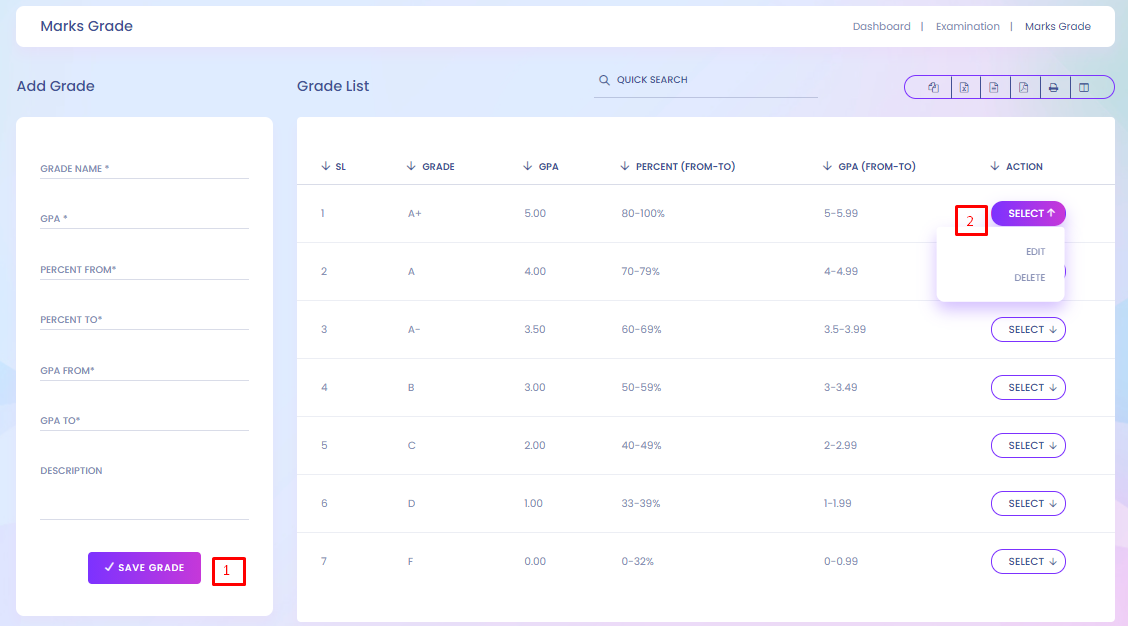
1. Add Exam Grade
To add exam time, super admin needed to submit grade name, gpa , percent form, percent to , gpa form & gpa to Then click Save Time Button
2. Select action
In the exam time list, all information are shown in details. Super admin can delete the exam list
Add Exam Time
EdPel Add Exam Time

1. Add Exam Time
To add exam time, super admin needed to submit exam period, select time & end time. Then click Save Time Button
2. Exam time Setup
In the exam time list, all information are shown in details. Super admin can delete the exam list
Add Exam
EdPel Add Exam

1. Add Examination Name
Super admin can add examination name. He has been allowed to edit and delete the examination name.
2. Exam Setup
By clicking the Exam Setup button super admin can enter the exam setup page.
Exam
EdPel Exam


1. Add Exam
To exam setup, firstly select the class or classes then select the corresponding section or sections,secondly select the particular subjects or subject then select the exam type. Total mark of the particular exam should have to setup in the exam mark field.
To distribute the exam marks, We have to identify the how much marks in which exam category, like written exam has 70, class test has 20, homework has 10 and the total marks will show in Total field. The marks can't cross the exam marks.
2. Exam List
In the exam list, exam's all information are shown in details. Super admin can delete the exam list.
Exam Schedule
EdPel Exam Schedule

1. Add Exam Schedule
By Clicking the right-top button add exam schedule super admin enter the exam setup schedule page.
2. Search Exam Schedule
To search the exam schedule super admin have to select the exam name, class and section. The assigned exam routine is shown in the exam schedule section.
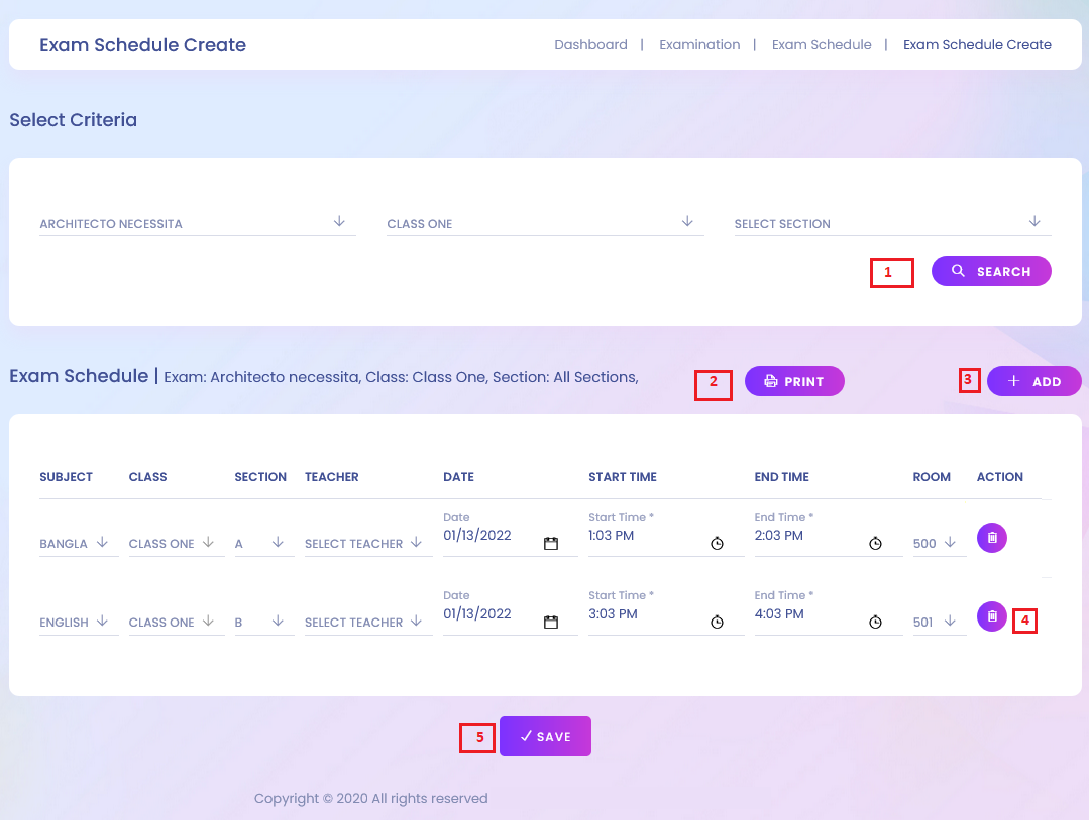
1. Search for Set Exam Schedule
After clicking the add exam schedule button super will enter Exam Schedule create page. In this page, by selecting the exam name, class and section super admin will get the set exam schedule section.
2. Print Exam Schedule
Print Exam Schedule selecting the exam name, class and section.
3. Assign Exam Schedule
To assign exam schedule just click the (+ADD) symbol, then super admin will get the create exam routine new row.If any exam schedule is assigned then the assigned exam schedule is shown in this list.
4. Delete Exam schedule
Click Here For Delete Exam Routine.
5. Create Exam Routine
just select the date and the room number super admin can setup the exam routine for particular subject in particular date and time.
Marks Register
EdPel Marks Register

1. Mark Register
In the mark register submodule, super admin can see the mark registered list by searching through selecting the exam name,class and section. By clicking the right-top button add button super admin can enter the fills marks page.
To search the certain fill up marks list, super admin have to select exam name, class, section and subject.
2. fill up the Marks
In the Fill up marks lists, All the particular mark sections are included like class test marks, homework marks, written exam etc. If anyone was absent in the examination then just check the is absent. After distribute all marks by submit the save button then marks will be registered.
Exam Attendance
EdPel Exam Attendance


1. Attendance Create
By clicking the exam attendance button, super admin can able to enter the exam attendance setup page.
2. Search Exam Attendance
To search the certain exam attendance have to select the exam name, class, section and subject.
3. Attendance Status
Exam attendance list will show the the search result. in this list, attendance column will show which student was present or absent in this particular exam.
4. Setup Exam Attendance
To get the desire exams attendance setup section just select the exam name, class, section and subject. in this attendance setup section, super admin can check the absent or present option button.
Marks Grade
EdPel Marks Grade

1. Add Grade
To add certain mark's grade,super admin need to add grade name,it's GPA, percentage range ,gpa range etc.
2. Select Section
Super admin can edit and delete the grade list.
Send Marks Via SMS
EdPel Send Marks Via SMS

1. Send Marks Via SMS
Mobile SMS is the modern system for checking the Result and all other exams result. The students and their parents can check Result using Mobile SMS quickly within a while
Setup Exam Rule
EdPel Setup Final Exam Rule
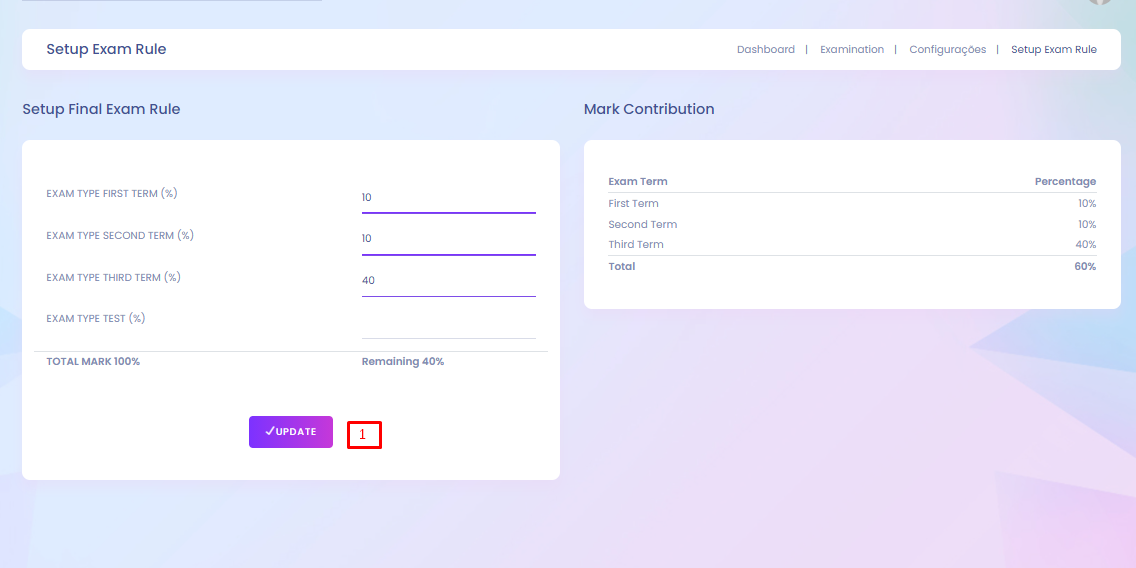
1. Setup Final Exam Rule
Exam Rule used for mark contribution.For setup this rule, just put your number carefully.Number will be used as percentage
Format Configurations
EdPel Format Configurations

1. Add Exam Format
By clicking the format configurations, super admin will get the add exam format page. To add exam format have to need select exam , controller title, result publication date, start date and end date.
2. Select Action
In the exam format list several actions are included which are edit and delete.
Question Group
EdPel Question Group

1. Add Question Group
To add question, super admin have to include the question group name.
2. Select Section
Super admin can edit and delete the question group list.
Question Bank
EdPel Question Bank
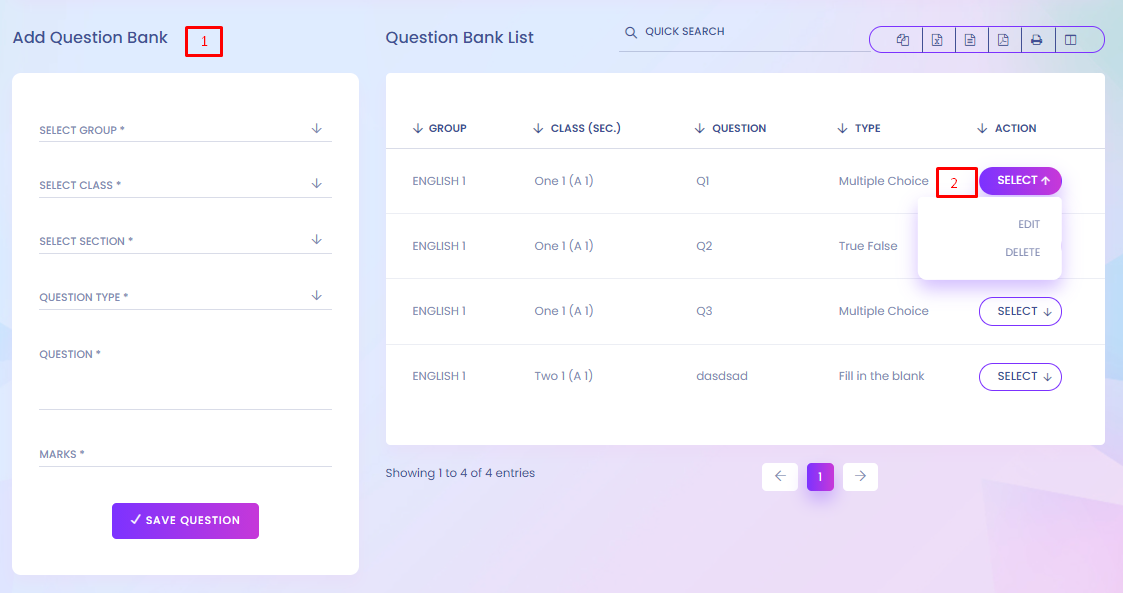
1. Question Bank
To add question bank, select question group, class, section, type, question & marks are needed to submit. question type, question name and it's marks.
2. Select Section
Super admin can edit and delete the question bank list.
Online Exam
EdPel Online Exam


1. Add Online Exam
To add online exam, exam title, class, section, subjects, date, start and end time, minimum percentage and the exam's instruction.
2. Publication status
In the online exam list, publication status will show the examination is published or pending
3. Select Action
Manage question, mark register, edit and delete can allow for super admin in the action column.
4. View Result
By just clicking the view result, result will be shown.
5. Save question
After clicking the manage question option,super admin can enter the question list page where admin can save the question for particular online examination.
6. view Question
Super admin can see the details of the selected question.
7. View question Modal
In this modal,Super admin can see the details of the selected question.
8. Marking
Super admin can see the marks setup list of the participant, super admin can add exam mark of the individual.
9. Result View
By clicking the view result button, super admin can see the full result sheet.
Add Homework
EdPel Add Homework


1. Add Homework
To add homework, class, section, subjects, date, submission date, marks and description are needed to submit.
2. Select Action
In the action column, evaluation, edit and delete options are include.
3. Search Homework list
To search homework list, class, section, subject are needed to select.
4. Add homework
By clicking the add homework super admin can add new homework.
5. Evaluation homework
Super admin can evaluate the homework by clicking the evaluation option in action column.In evaluation homework, students are evaluated by marks, comments, homework status.
6. Evaluation Date
Evaluation date should have to select before evaluation page submit.
Homework Evaluation Report
EdPel Homework Evaluation Report
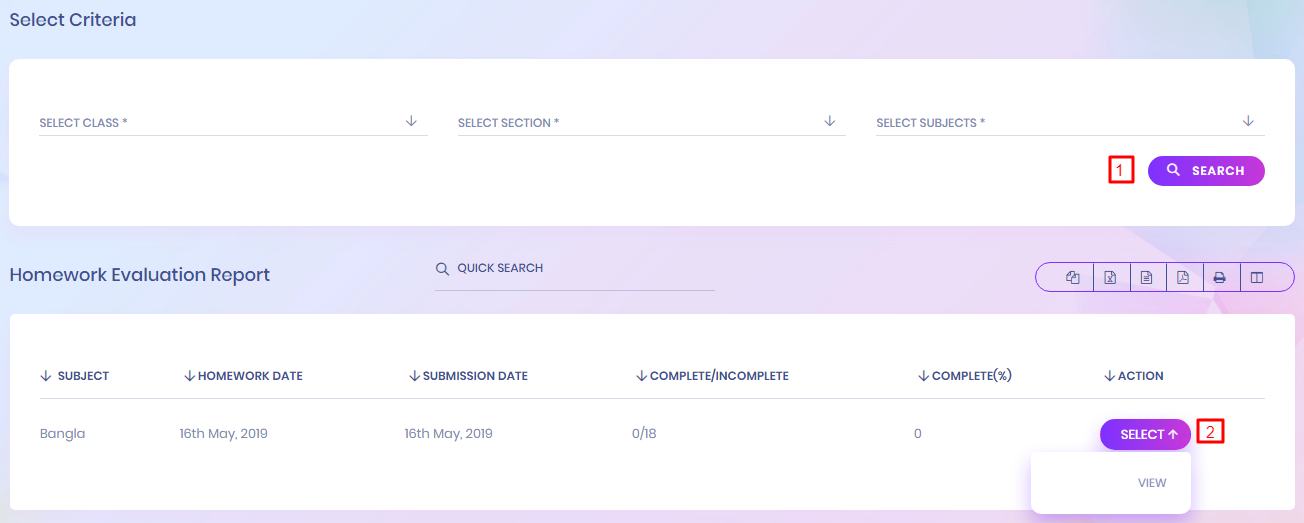

1. Search Homework Evaluation Report
To search homework evaluation report, class, section, subjects should have to select.
2. Select Action
Homework evaluation report list are show the search result. By clicking view option full evaluation of a particular home can be seen.
Notice Board
EdPel Notice Board

1. All notices
Super admin can see all the notices which is select for.
2. Add notice
super admin can add new notice by clicking the add notice button.
Send Email
EdPel Send Email


1. Send email or SMS (Group)
Super admin can send email or sms by checking in send through check box. Title and description is also mandatory field.
If he wants to send this to several receiver then he can select several receiver in the group section.
2. Send email or SMS (Individual)
If he wants to send this to individual receiver or certain role receiver then he can select role of the receiver and select the name or names in the individual section.
3. Send email or SMS (Class)
If he wants to send this to particular class students then he can select a class and certain section in the class section.
Email / Sms Log List
EdPel Email / Sms Log List

1. Email / Sms Log List
All the email and sms which is send that are listed here. If wants to send new email or sms then just click the Send Email/Sms button.
In the list, email or sms receiver list are shown. This are group, individual and class.
Event List
EdPel Event List

1. Add Event
To add event, event title, for whom,event location, start date, to date, description and attach file are needed. The event list will show all the event which are added.In the list, event can be edit and delete are possible.
Sms Template
EdPel Sms Template

1. Update SMS Template
You can update the message body from Available Variables and InfixEdu will automatically fill the information from the respective module and send sms accordingly.
Email Template
EdPel Email Template

1. Update Email Template
You can update the message body from Available Variables and InfixEdu will automatically fill the information from the respective module and send email accordingly.
Book Categories
EdPel Book Categories
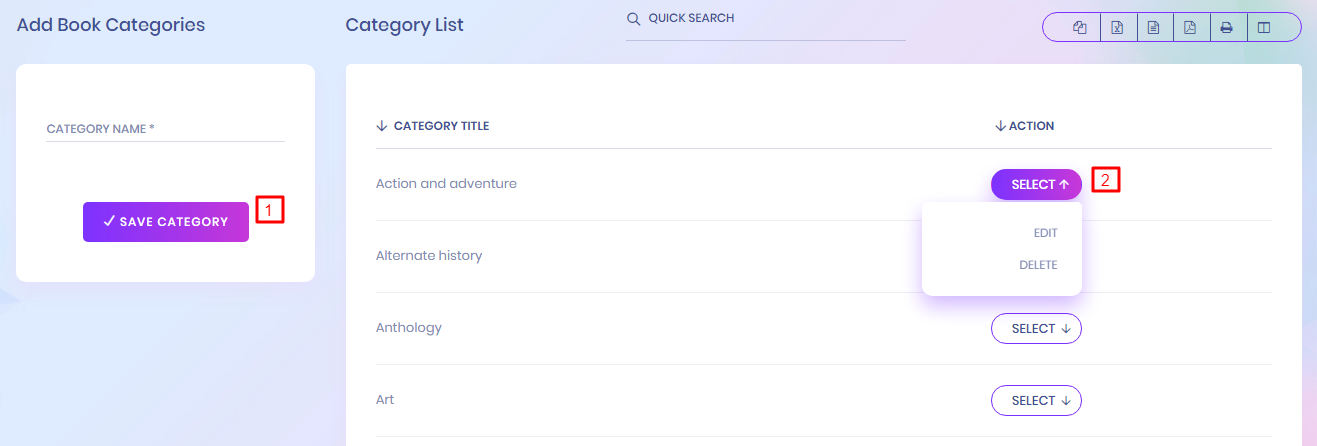
1. Book Categories
If Super admin wants he can add new book category in this submodule. All the book category list is shown in Category list.
Subject List
EdPel Subject List

1. Add Subject
Super admin can add new library member. In this case Subject name and Subject Code is necessary to fill up.
2. Subject List
Subject lists are shown in subject list. Super admin can edit and delete the question bank list.
Add Book
EdPel Add Book

1. Add Book
Super admin can add book which is available in the library. For adding book, book title, category, subject is mandatory. For proper book details information need to fill up all the field in this form.
Book List
EdPel Book List
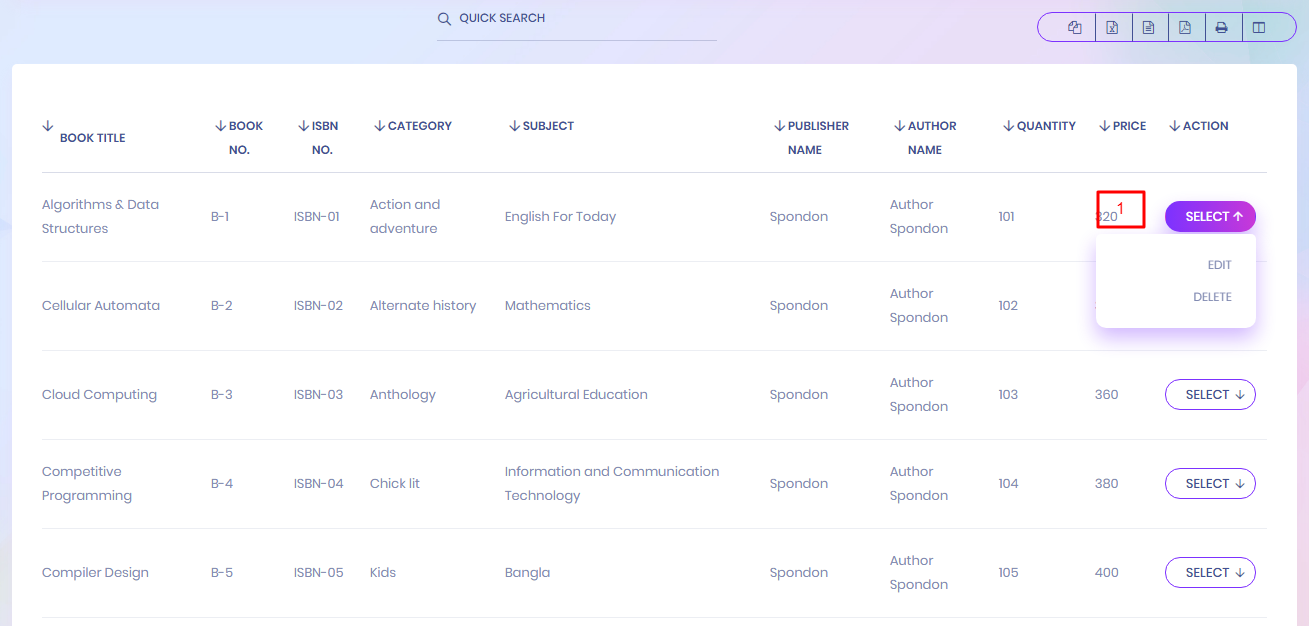
1. Book List
All the books which are available in the library are shown in this book list.Super Admin can edit and delete the book information if he wants.Add Member
EdPel Add Member
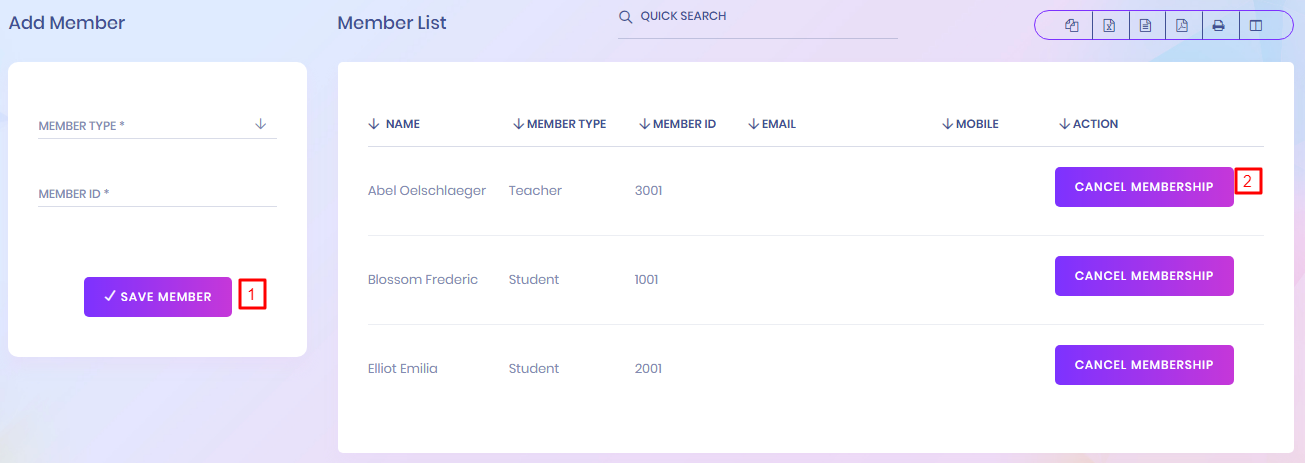
1. Add Member
Super admin can add new library member. In this case member type and member id is necessary to fill up.
2. Cancel member list
Library member lists are shown in member list. Super admin can cancel the member if he wants.
Issue Books
EdPel Issue Books
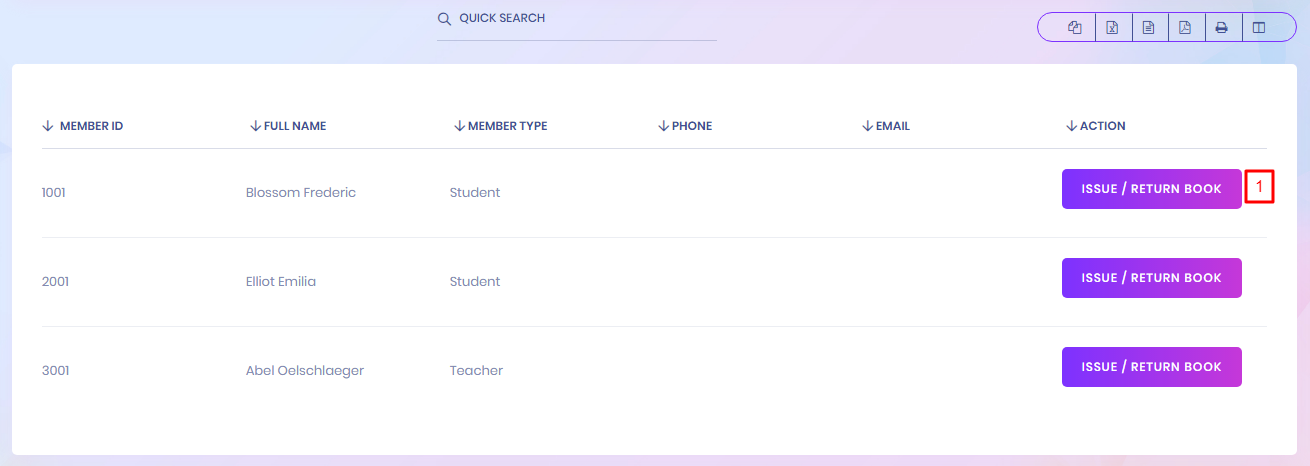

1. Issue Books
All the members of the library are shown in this list. Where super admin can issue or return book/books to him.
2. Issue or Return Books
By clicking the Issue/Return Books super admin can able to issue book to the library member and if want he can return book.
Issued Book List
EdPel Issued Book List

1. Search Issued books
By selecting book name or book id or subject super admin can see the issued book list.
Dormitory Rooms
EdPel Dormitory Rooms
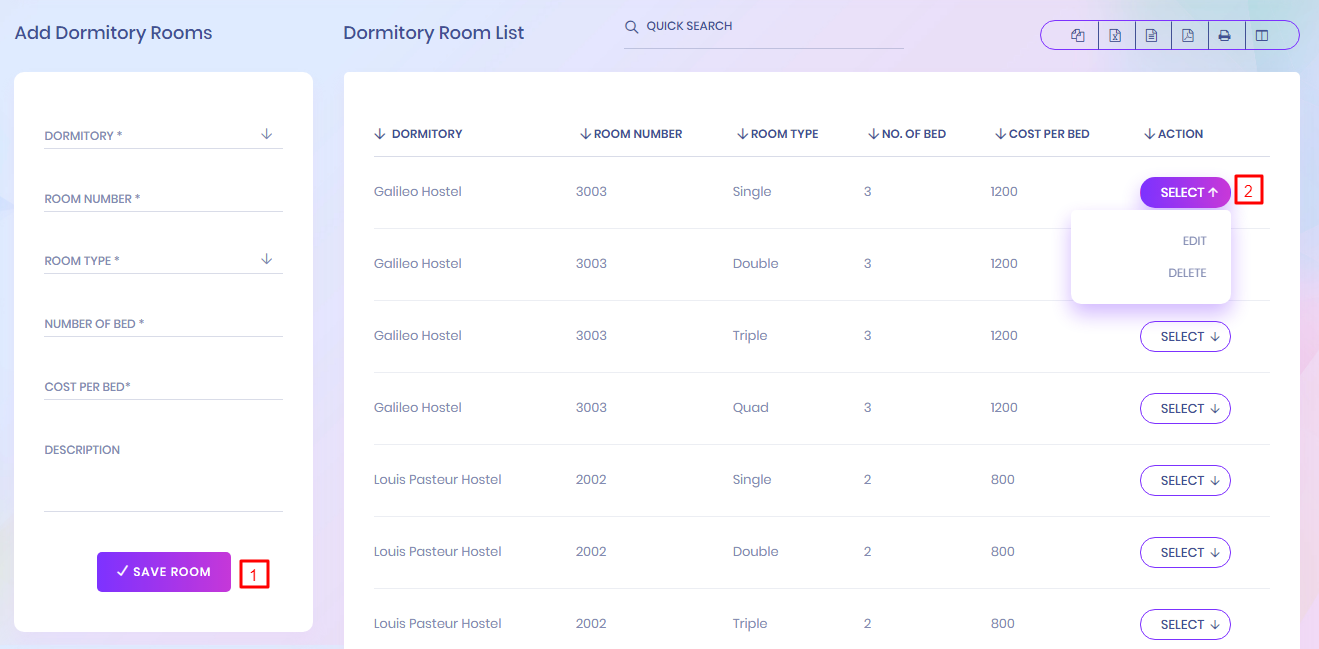
1. Add Dormitory Rooms
Super admin can add dormitory Rooms which should have to include dormitory name, room number, room type, bed number and it's cost.
2. Select Action
In the dormitory room list, super admin can able to edit and delete the dormitory room information.
Dormitory List
EdPel Dormitory List

1. Add Dormitory
For adding dormitory super admin need to add dormitory name,type and how much allotment are possible in this dormitory.
2. Select Actions
Edit and delete option are permitted for super admin.
Room Type
EdPel Room Type

1. Add Room Type
Which kinds of rooms are available in the dormitory, super admin can add this.
1. Select Actions
Super admin can edit and delete the room type list.
Student Dormitory Report
EdPel Student Dormitory Report

1. Search Student Dormitory Report
For searching student dormitory list class, section and dormitory name should have to select.
Transport Route
EdPel Transport Route

Transport Route
This module has 3 sections -
- Routes
- Vehicles
- Assign Vehicle
- Student Transport Report
First we will add Routes then add Vehicles then Assign Vehicle on Routes then check Student Transport Report.
Routes- Go to Transport > Routes enter Route Title, Fare & click Save button. All the routes can be see right side at this page.
Go to Transport > Vehicles enter Vehicle No, Vehicle Model, Year Made, Driver Name, Driver License, Driver Contact, Note & click Save button. All the vehicles can be see right side at this page. Student Transport Report- Go to Student Information > Student Transport Report here you can view all students list who has availed transport facility.
Vehicle
EdPel Vehicle

Assign Vehicle
EdPel Assign Vehicle

Student Transport Report
EdPel Student Transport Report

Item Category
EdPel Item Category

1. Add Item Category
To add item category super admin should add category name. By Clicking Select in action column super admin can get the option of delete and edit.
Item List
EdPel Item List

1. Add Item List
In Item List Submodule, to submit an item need to add item name, select an item category which is added in item category submodule.
2. Select action
Super admin can edit and delete the item list.
Item Store
EdPel Item Store

1. Add Item Store
Store name is essential for adding item store and store number is the identity of the store.
2. Select action
Super admin can edit and delete the item store.
Supplier
EdPel Supplier

1. Add Supplier
For adding supplier, supplier's company name, name, mobile number, email address is needed to submit.
2. Select Action
Super admin can edit and delete the supplier list.
Item Receive
EdPel Item Receive

1. Receive Details
At first select supplier which is come from the supplier list that is added by super admin. Select the available store or warehouse which also added by super admin in the item store submodule. Then need to add the reference number, receive date.
After that select the item from the item list which is listed in item list submodule, put it's unit price, quantity. Sub total will show the individual item's total price. After adding all sub total the final result will be shown.
If check the full paid option no due will be shown. If not, then put the amount in total paid field. If it's meet up the total due will zero, if not then due or surplus amount will show in the total due field. Payment method can also be selected in this operation.
2. Add Item
By just clicking the add button, new item will be added in the calculation process.
Item Receive List
EdPel Item Receive List


1. Paid and Unpaid Status
In the item receive list paid or unpaid status is shown. If payment is complete then the status show paid, if not then show unpaid
2. Select Actions
In this list, view purchase details, edit and delete the list, if unpaid then add payment and view payment are included in action.
3. New Item Receive
By clicking the new item receive button, easily can add a new item receive.
4. Purchase Receipt
To see the purchase receipt, just click the view option in the action column for individual item receive then can possible to see the purchase detail information.
5. Add Payment
If any amount of due remains then we can complete the payment by clicking the add payment in the action column. After that we can fill up the payment through a particular payment method.In this case of operation reference number should be added.
Item Sell List
EdPel Item Sell List


1. Paid and Unpaid Status
In the item sell list paid or unpaid status is shown. If payment is complete then the status show paid, if not then show unpaid
2. Select Actions
Action column in this list, super admin can able to see sell details in view option, edit and delete the list and if unpaid then able to add payment and view payment.
3. New Item Sell
By clicking the new item sell button, easily can add a new item's sell information.
4. Item Sell
At first select the person who buy the item, whom are added by super admin. Then need to add the reference number, receive date of selling.
After that select the item from the item list which is listed in item list submodule, put it's unit price, quantity. Sub total will show the individual item's total price. After adding all sub total the final result will be shown.
If check the full paid option no due will be shown. If not, then put the amount in total paid field. If it's meet up the total due will zero, if not then due or surplus amount will show in the total due field. Payment method can also be selected in this operation. After done the submission the sell information will be listed in item sell list.
Issue Item
EdPel Issue Item
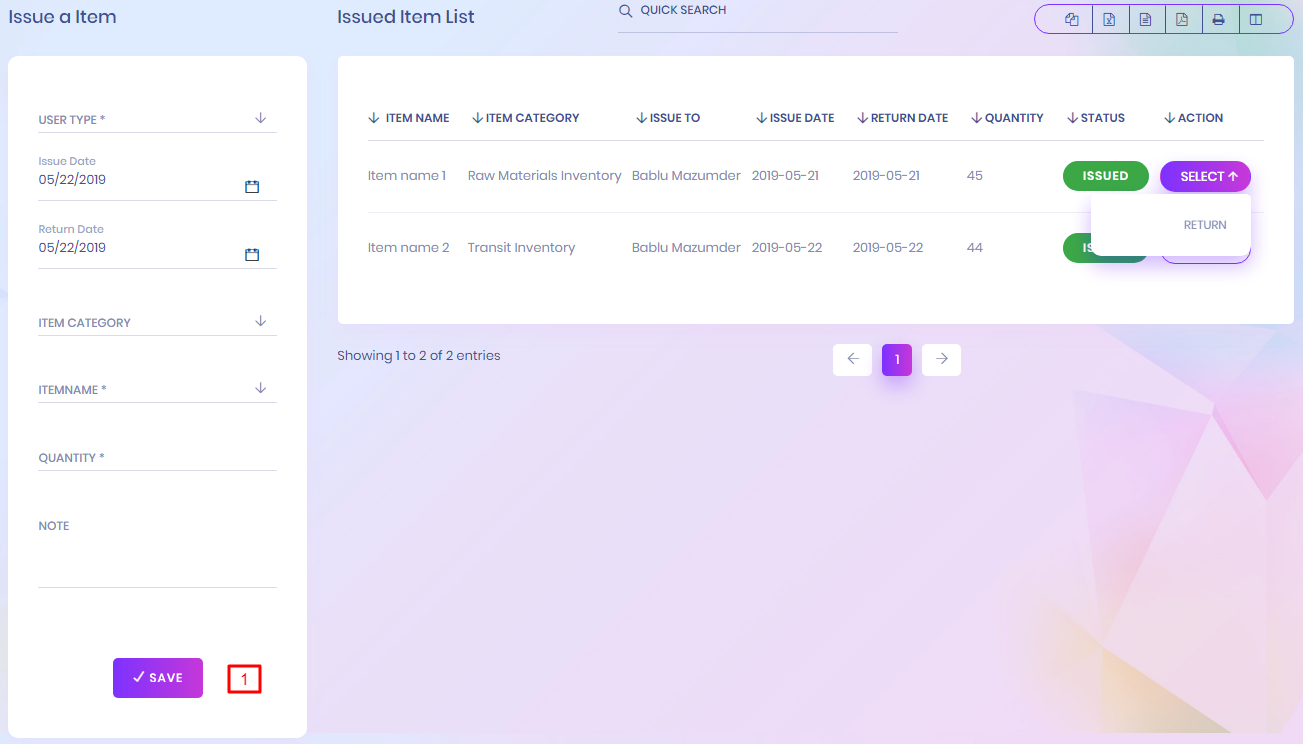
1. Issue a Item
Which item is issued for which person should have to add in the begin of the form. For Submission which kind of user,his name and if he is studentthen his class,section also mandatory. Issue and return date, item category, item name and it's quantity should have to submit before final submission.
After submission the issued item list is shown here. If super admin wants, he can return the issued item. Status will show which item is issued and return.
Student Report
EdPel Student Report
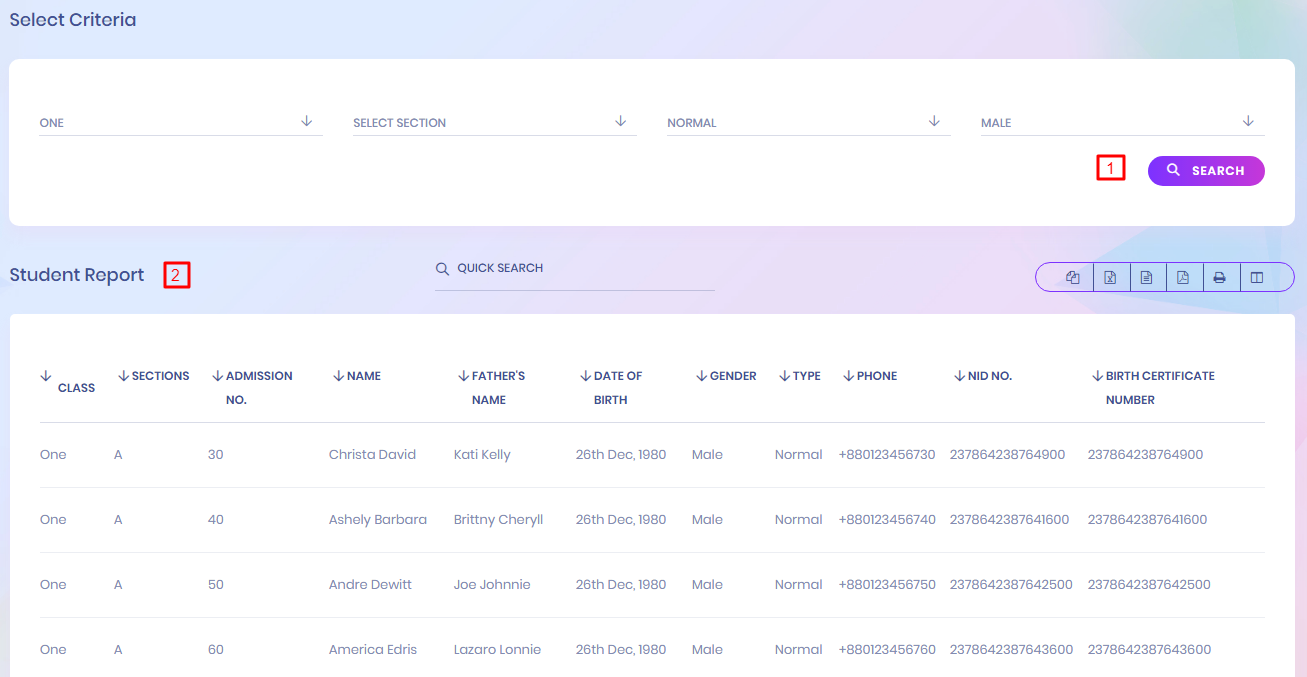
1. Search Student Report
To search the student report, have to select the class,section, student type, gender.
2. Student Report List
The search result is shown in student report list. Here student's all the major information are shown.
Guardian Reports
EdPel Guardian Reports
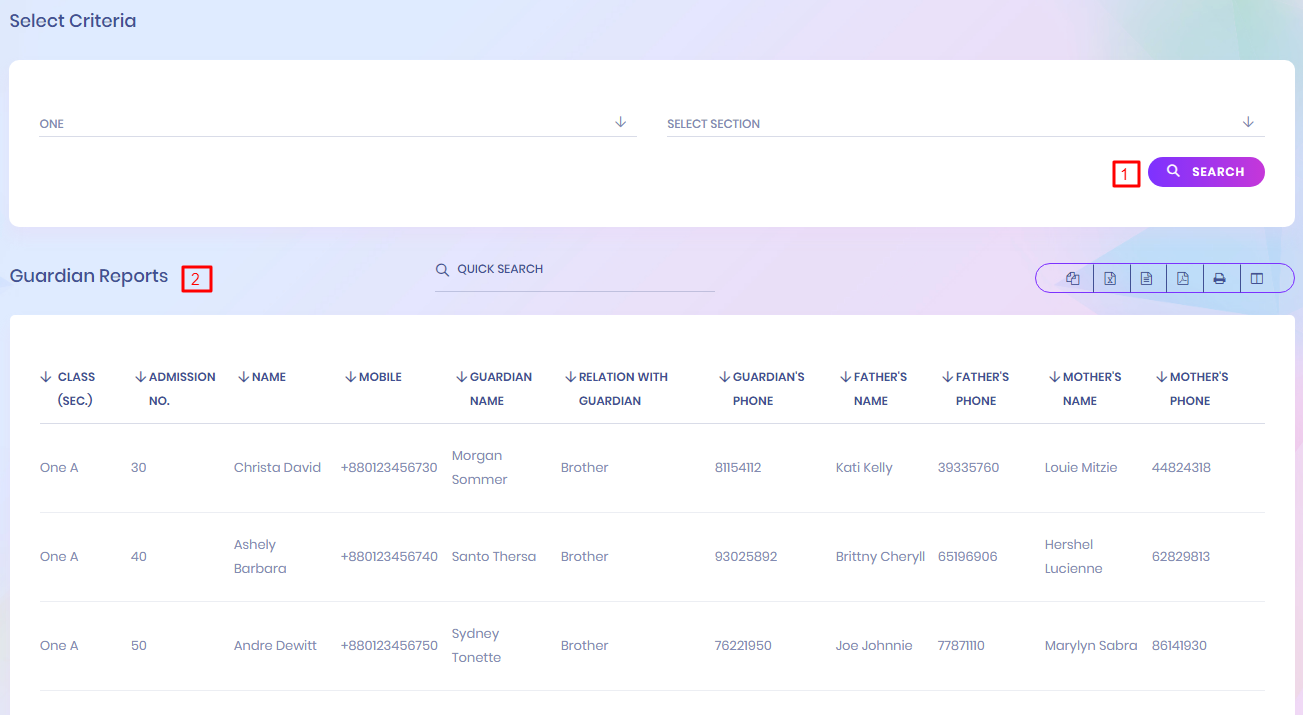
1. Search Guardian Reports
To search the guardian report, have to select the class, section.
2. Student Guardian Reports List
The search result is shown in guardian report list. Here student's guardian all the major information are shown.
Student History
EdPel Student History

1. Search Student History
For searching the student history, super admin have to select the class and admission year.
2. Student Report List
The search result is shown in student history list. Here student history are shown.
Student Login Report
EdPel Student Login Report

1. Search Student Login Report
To search the student login report, have to select the class, the current section.
2. Student Login Info Report List
The search result is shown in student login report list. Here student can reset his password and his guardian as well.
Fees Statement
EdPel Fees Statement


1. Search Fees Statement
For searching the student fees statement report, have to select the class, section, student name.
2. Student Fees Statement List
The search result is shown in student fees statement report list. Here, student's fees which are paid already and if has any discount that are also shown.
Balance Fees Report
EdPel Balance Fees Report

1. Search Balance Fees Report
For searching the student balance fees report, have to select the class, section.
2. Student Fees Report List
The search result is shown in student balance fees report list. Here student's amount, discount, fine, paid fees, balance statement are shown.
3. Grand Total
Grand total is shown one section's amount, discount, fine, paid fees, balance total statement
Transaction Report
EdPel Transaction Report

1. Search Transaction Report
For searching the student balance fees report, have to select from from date to date to.
2. Fees Collection Details
Fees collection detail list show particular date duration's fees collection information.
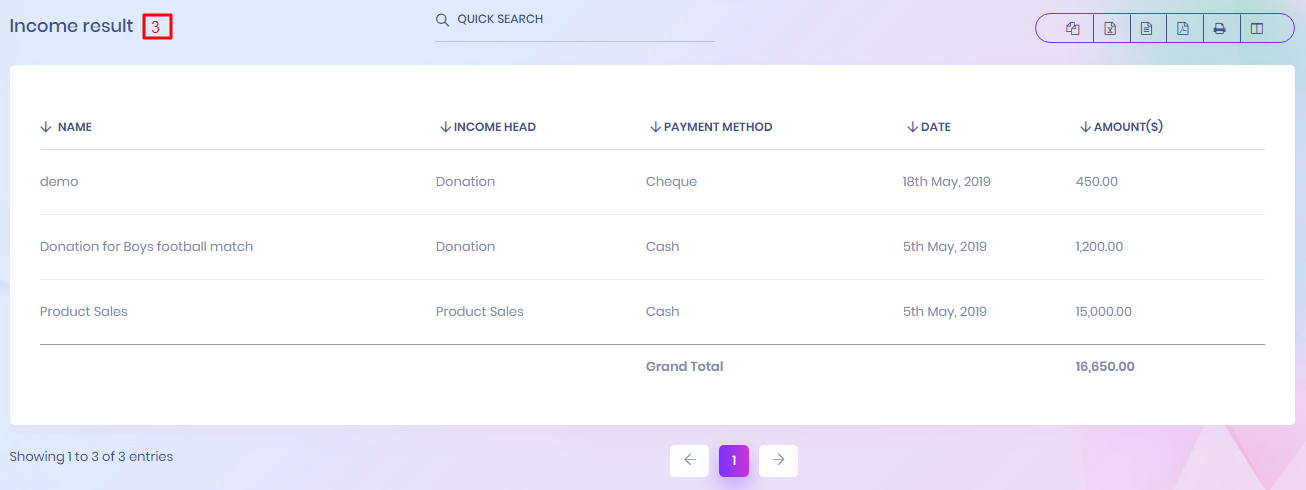
3. Income Result
Income result list show particular date duration's income detail information. Grand total show the total amount of income.
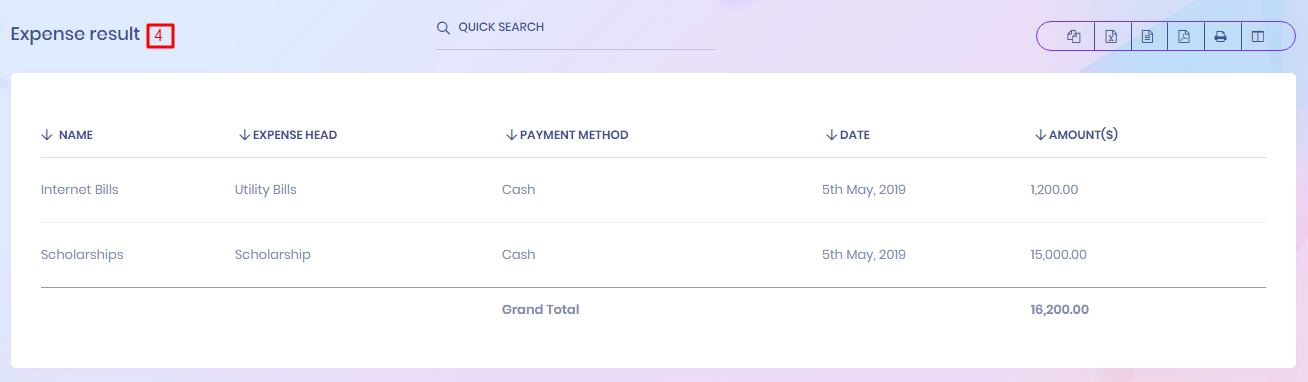
4. Expense Result
Expense result list show particular date duration's expense detail information.Grand total show the total amount of expense
Class Report
EdPel Class Report


1. Search Class Report
For searching the class report, have to select class and it's section name.
2. Class Report for particular Class and Section
This report show the particular class's summary. Here includes class information, subjects, type of fees collection.
3. Statistic of Fees Collection
This graphical statistic represents the particular class's fees collection statement.
Class Routine Report
EdPel Class Routine Report

1. Search Class Routine
For searching the class routine, have to select class and it's section name.
2. Class Routine List
The search result is shown in class routine report list. Here full week's per period assigned classes are shown.
Exam Routine
EdPel Exam Routine
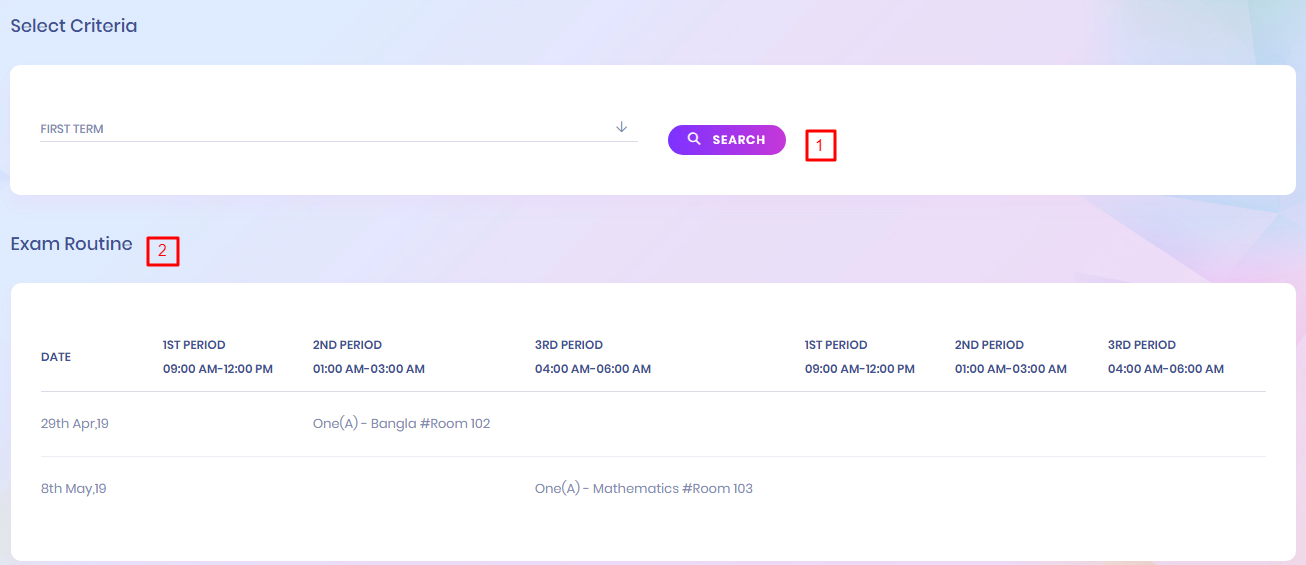
1. Search Exam Routine
For searching the exam routine, have to select examination name.
2. Exam Routine List
The search result is shown in exam routine report list. Here particular exam's full routine are shown.
Teacher Class Routine Report
EdPel Teacher Class Routine Report

1. Search Teacher Class Routine Report
By selecting the teacher name, super admin can see the particular teacher's class routine.
2. Class Routine List
In this class routine, individual teacher's full week assign class are listed.
Merit List Report
EdPel Merit List Report
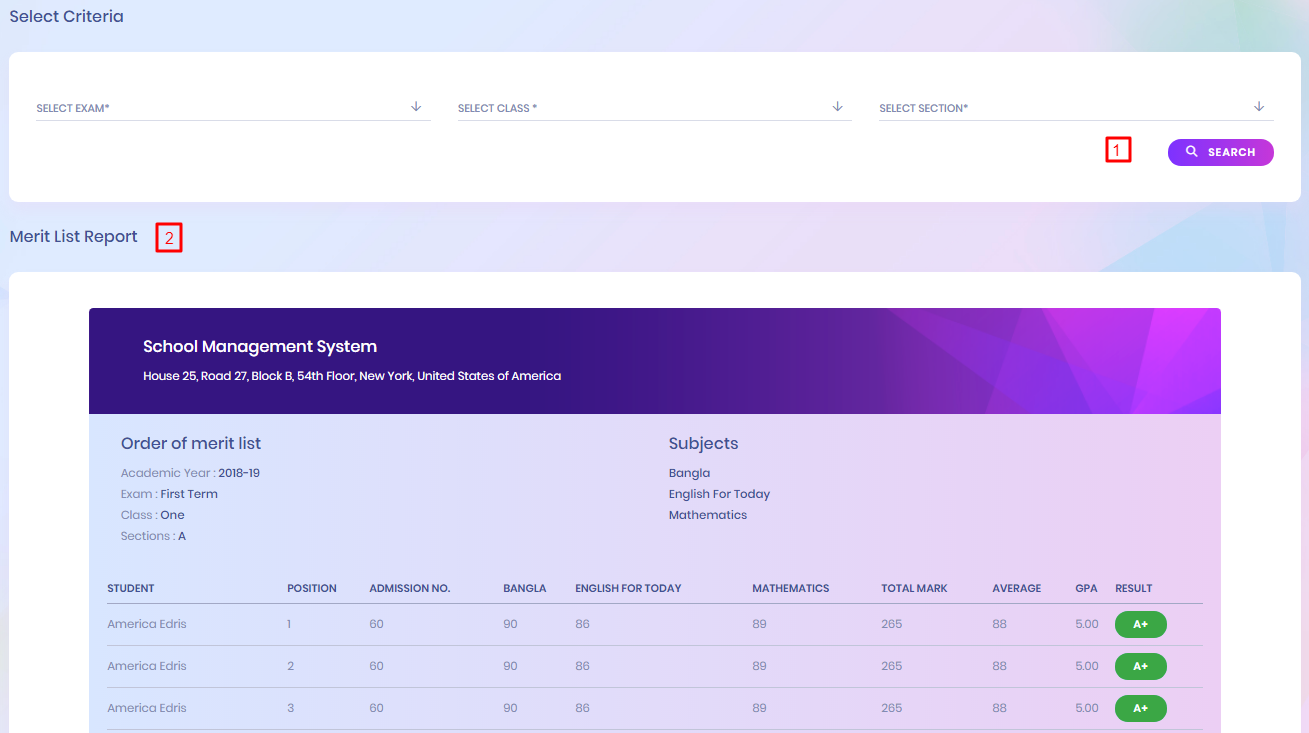
1. Search Merit List Report
To see the particular section of a class, have to select the exam name, class name, section.
2. Merit List Report
Search result are shown the a class all student's merit list. Here, in ascending order of student position, lists are shown. Individual subject's mark, grade also inclued in this list.
Online Exam Report
EdPel Online Exam Report
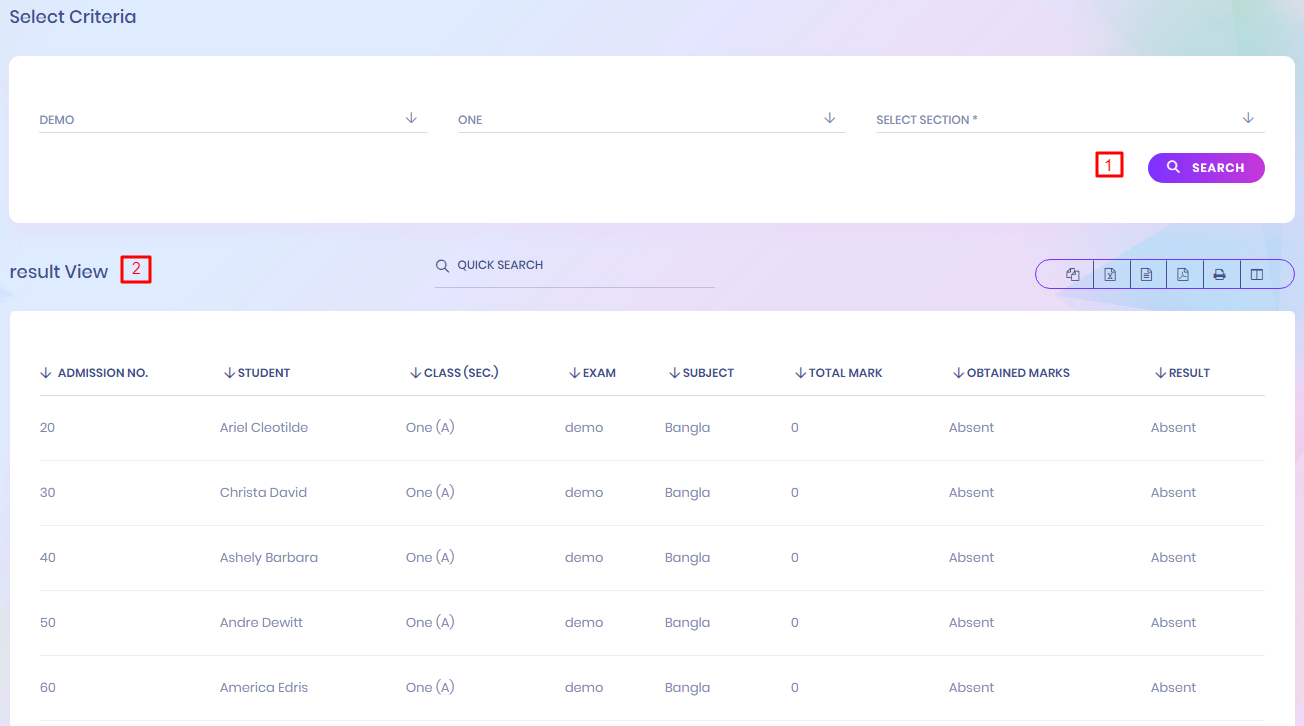
1. Search Online Exam Report
You can search online exam report. Search fields are exam term, class, and section
2. Result View
After searching the result view list are shown
Tabulation Sheet Report
EdPel Tabulation Sheet Report

1. Search Tabulation Sheet Report
You can search tabulation sheet report. Searching fields are Exam type Id, Class, Section and student.
2. Student Terminal Report
After searching tabulation sheet, the tabulation sheet are shown in below.
Student Progress Report
EdPel Progress Report

1. Search Progress Report
You can search student progress report
2. Progress Report List
After searching you can find student progress report list.
Student Fine Report
EdPel Student Fine Report
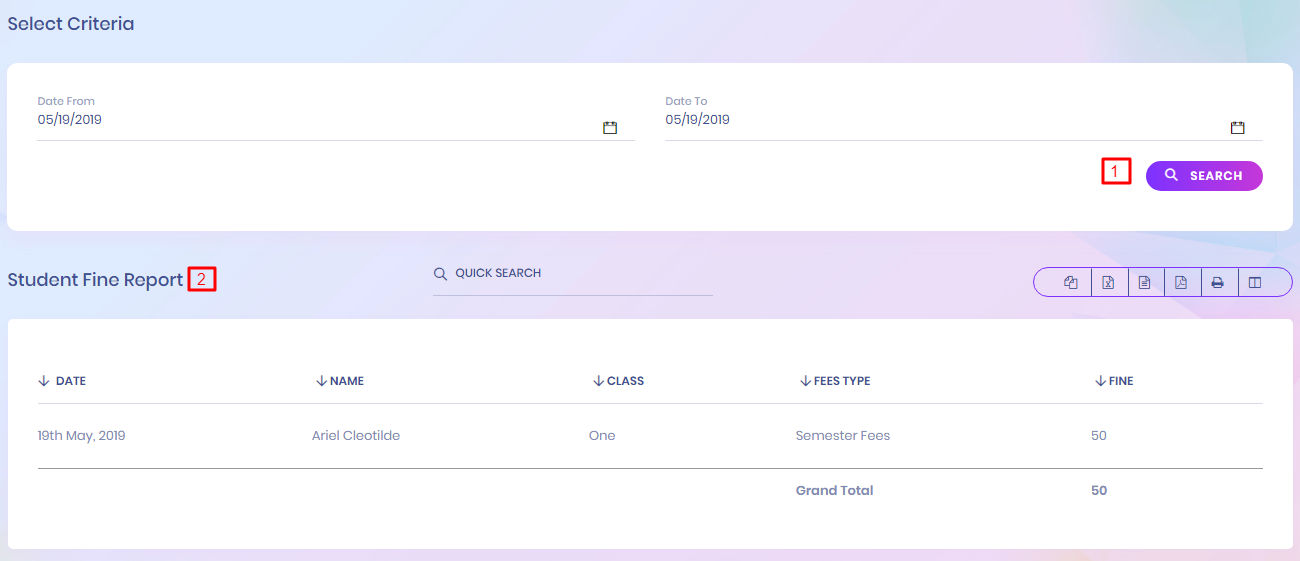
1. Search Student Fine Report
You can search student fine report form between two date
2. Student Fine Report List
After searching you can find student fine report list.
User Log
EdPel User Log

1. User Log list
This is onl for administrator, he can see the user loging history so that he can understand which user is active or not.
Previous Result
EdPel Previous Result

1. Select Criteria
If you want to check previous result ,simply insert your addmission number & click search.
Previous Record
EdPel Previous Record

1. Select Criteria
For searching previous record super admin have to select academic year, class & section
2. Student List
Students previous record will be shown in the student list
Role Permission
EdPel Role Permission
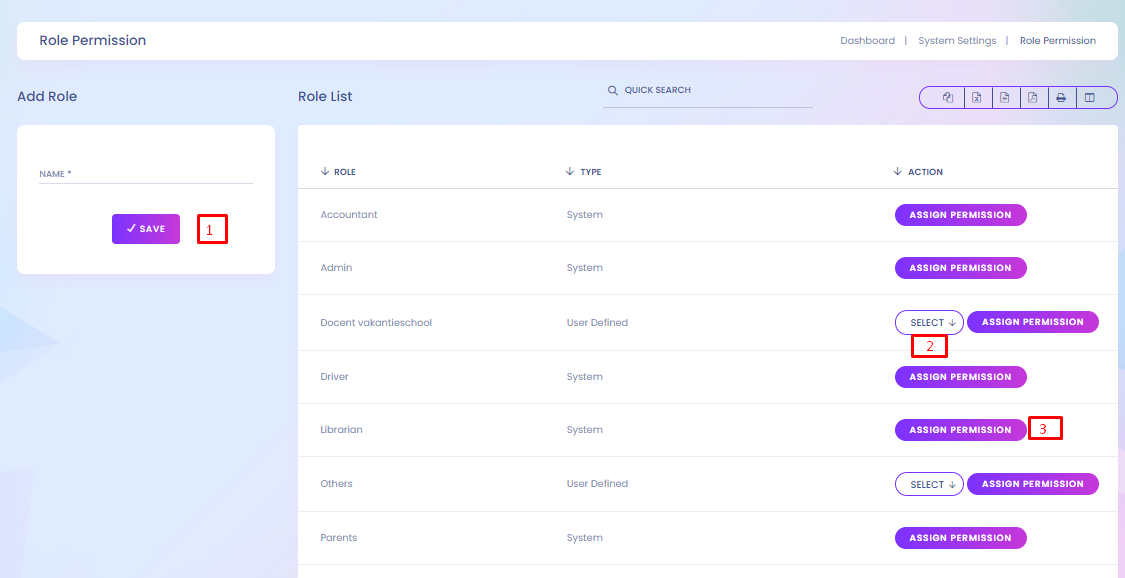
1. Role Permission
The administrator can add role and assign their permission
2. Select
The administrator can edit or delete role and assign their permission

3. Role Permission Assign
The administrator can assign their permission
Roles Permissions- Go to System Settings > Roles Permissions here we can create different Roles for staff users and then assign different user permission to this Role. To add new role enter Role Name then click on Save button all existing roles can be see from right side of this page. By default in EdPel School you will get 6 user roles SuperAdmin, Admin, Teacher, Accountant, Librarian, Receptionist. You can edit name or permission of these roles except SuperAdmin. To assign permission click on Assign Permission button from Action column. At this page you can see Module wise different Features and their different Permissions. Carefully assign different permissions on roles. After assigning permission, check where it is effecting in system. There are 4 types of permissions present here View, Add, Edit and Delete. Here note that if you are assigning Add/Edit or Delete permission then View permission should be given obviously if you have not given View permission then system can behave inconsistent so in best practice if you are giving Add/Edit/Delete any one permission then give View permission too.
Login Permission
EdPel Login Permission

1. Select Criteria
For searching role permission, select the role & then click search button.Then you will see role's list.
2. Login Permission
On the staff's list , you will see toggle button. By this button you can easily set role permission
General Setting
EdPel General Setting

1. Upload Logo
Upload Institution logo
2. Change Logo
After uploading Institution logo it will publish
3. Upload Favicon
Upload Institution Favicon
4. Change Favicon
After uploading Institution Favicon it will publish
5. General Settings View
Summary of General Settings View

6. Upload Form of General Settings
You can update General Settings according to your institution
1. Change Currency
You can change currency as your demand. All kind of currency is available in this system.
2. Change Language
You can choose language as your demand. If your language is not available, the you have to add language into your system from "system-setting>language-settings". After adding language, it is required to setup and then you have to make it default.
Email Settings
EdPel Email Settings

Email settings
To setup smtp settings, name , mail, mail driver ,mail host ,mail port ,mail username ,mail password and section or sections should be added.
Payment Method Settings
EdPel Payment Method Settings

1. Select Payment Method
Cash ,Cheque,Bank,PayPal,Stripe paystack payment method implemented. You can configuration one of them.
2. Update Payment Method
To enabling online payment in Parent Panel and Student Panel update your payment gateway account details for this, go to System Settings > Payment Methods select your appropriate payment gateway and add you payment gateway account details then click on save button and enable it from right side box.
3. Switch Payment Method
The administrator can switch within payment method

4. Stripe Payment Method
Stripe is the premier option for online credit card processing; it’s also the most popular premium payment gateway for Easy Digital Downloads – and it’s our preferred option!
Adding Stripe To Your Create Account. You will need to add Stripe as a payment gateway option to your Create account.
- Log in to your Create account
- Click "Shop" from the Top menu
- Click "Shop Settings" from the left-hand menu
- Click "Payment Gateways"
- Click "Add New Gateway"
- Chose "Stripe"
- Click "Save Changes" to add the gateway
Testing Stripe With Your Create Website
- Log in to your Stripe account
- Click "Account" from the top right hand of the page
- Click "Account Settings"
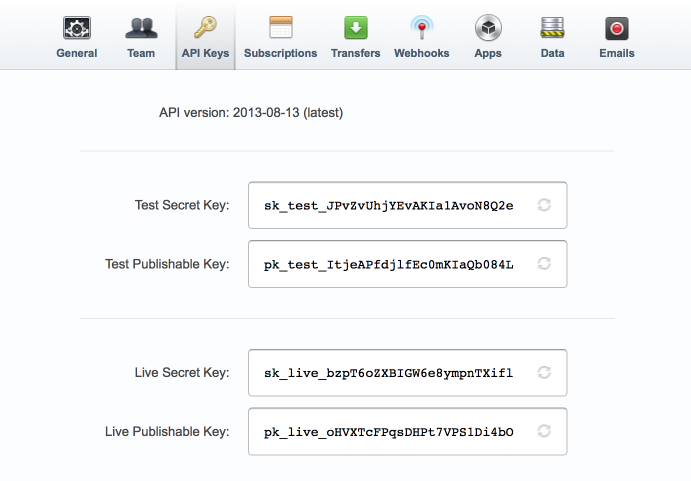
- Click the "API Keys" from the top tabs
- Here, you will need the "Test Secret Key" and "Test Publishable Key"
Module Manager
EdPel Module Manager
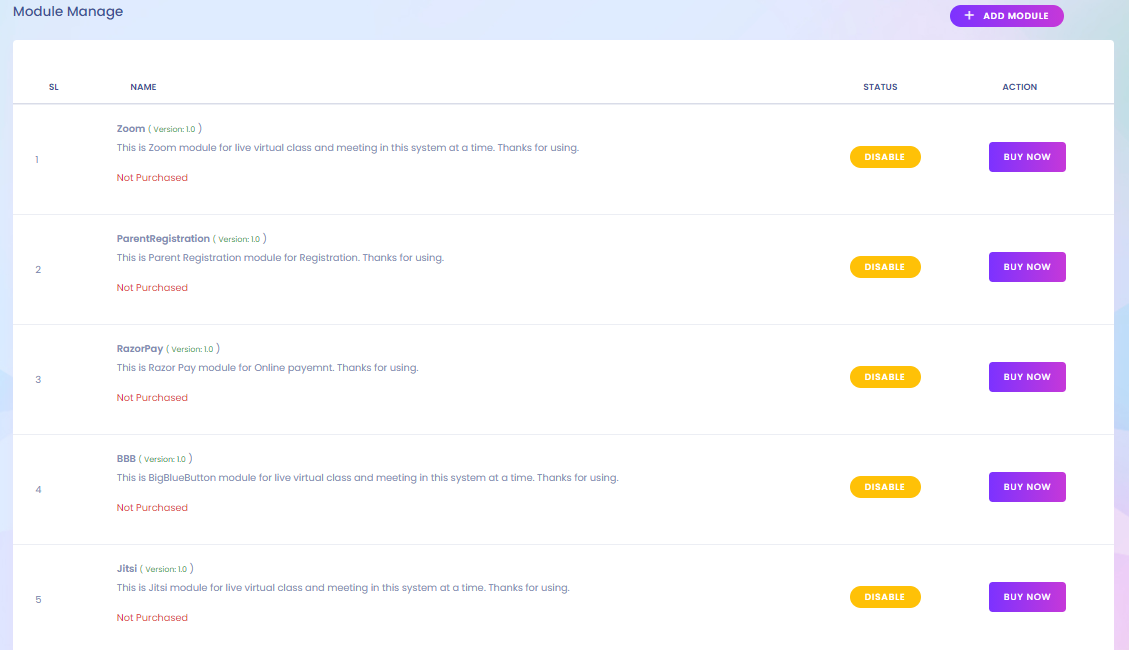
Add functionality with Module Manager
Use Module Manager built specifically for InfixEdu ultimate Education ERP to customize the functionality . There are exits five new module manager for InfixEdu ultimate Education ERP . Those modules are InfixEdu - Zoom Live Class, Parent Registration or Student Registration,Razorpay Payment Gateway,BigBlueButton & Jitsi module
1. InfixEdu - Zoom Live Class
Zoom Module is ready for InfixEdu ERP,now you can start your virtual class journey with the student also with staff

2. Parent Registration or Student Registration
Parent Registration or Student Registration Module ready for InfixEdu ERP, we have ready for the current version, now you can start your Parent Registration

3. Razorpay Payment Gateway
Pazorpay module ready to collect payment from student

Manage Currency
EdPel Manage Currency

1.Add Currency
InfixEdu ERP, we give you the option to add multiple currencies. To add currencies, go to System settings and click on Manage Currency from the Currencie
2.Select Action
In the action column ,edit and delete options are include.
About & Update
EdPel About & Update

System Info
You can see a System Info about your InfixEdu ERP in the About & Update Menu
Base Setup
EdPel Base Setup
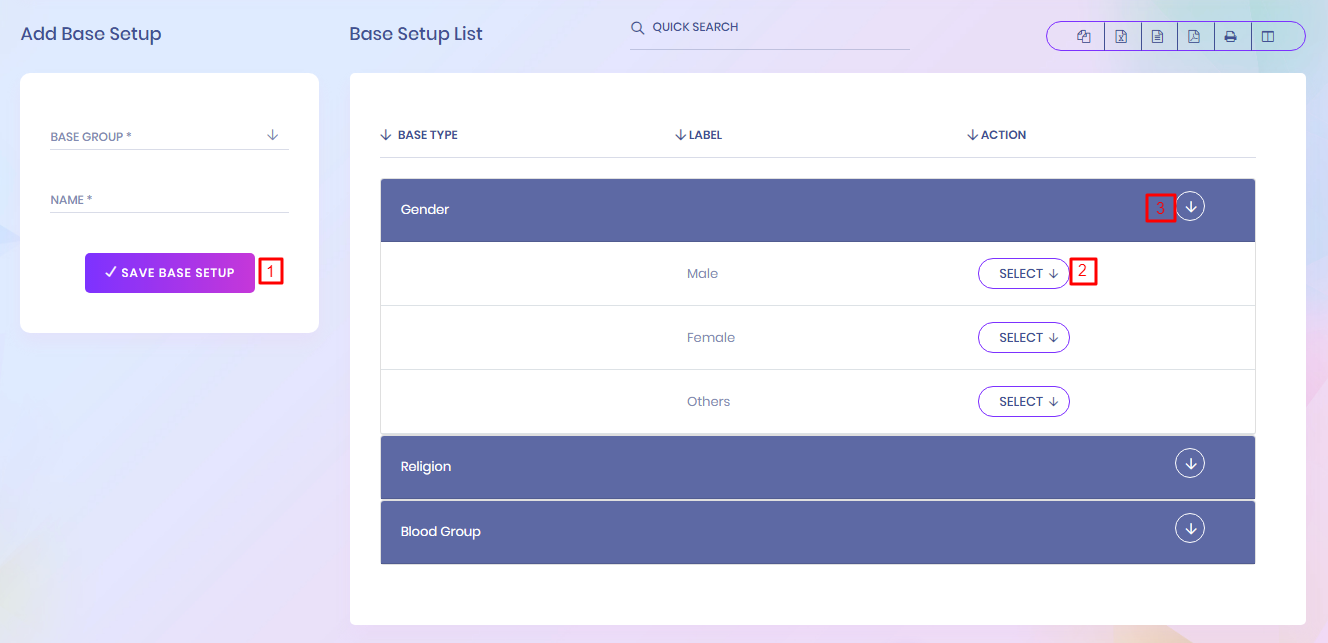
1. Base Setup
Administrator can add gender, religion, and blood group.
Academic Year
EdPel Academic Year

1. Academic Year
Administrator can add academic year.
Holiday
EdPel Holiday

1. Holiday
Administrator can manage holiday. You have to go System Setting > Holiday. You can add new holiday, edit & delete. It will show in dashboard calendar.
2. Manage Holiday
Administrator can edit & delete. It will show in dashboard calendar.
Sms Settings
Sms Settings

1. Sms Settings
You can seletect sms sender service provider
You can send sms to the students, teachers, & parents. You have to purchase package for sending message. There are two already implemented
2. Twilo Sms
Twilio SMS integration with InfixEdu brings the opportunity to receive notifications.
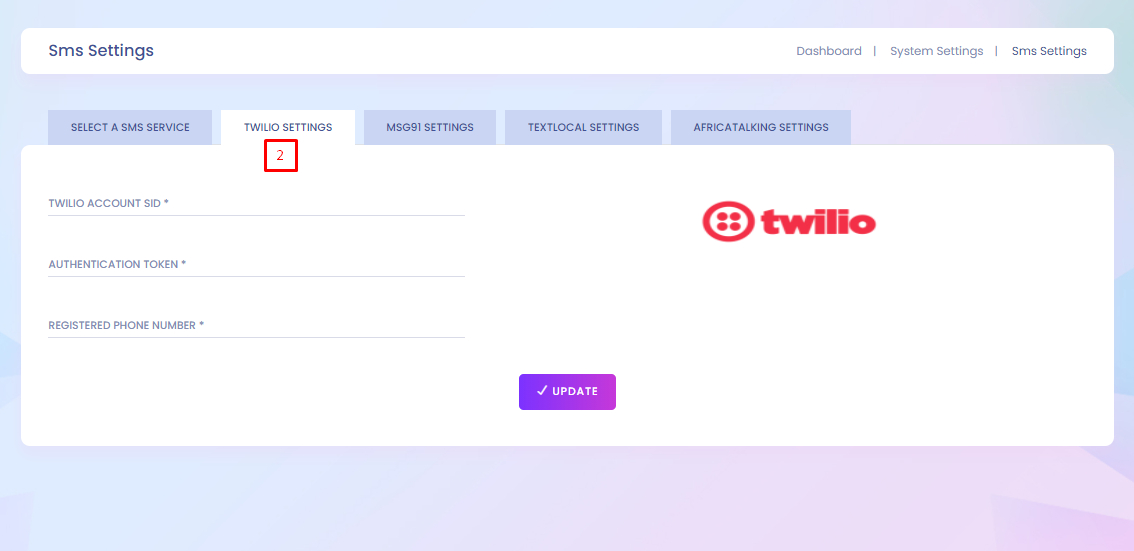
3. MSG91 Settings
MSG91 app enables you to send SMS in Bulk to your audience on the go. Any country, any mobile, SMS delivered instantly .To setup msg91 ,you have to fill up authentication key sid, sender id, route & country code
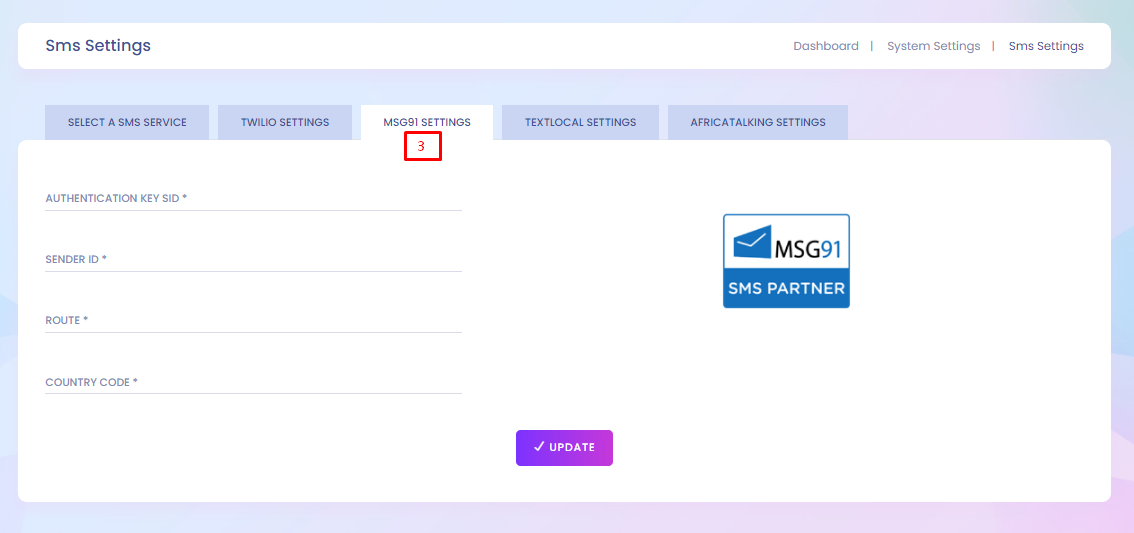
4. Textlocal Settings
Textlocal offers easy, powerful & self–serve messaging platform which makes it extremely convenient to upload & maintain contacts, compose media-rich SMS, and send smarter bulk SMS.

Weekend
Weekend

1. Checked Weekend
If you want to set saturday is weekend day, then you can using toggle button to update weekend day.
Language Settings
Language Settings

1. Language
You can add multiple languages. Select language and add into system.
2. Default
You can make it default. After making default, system will converted into default language
3. Language Setup
You can setup your custom language
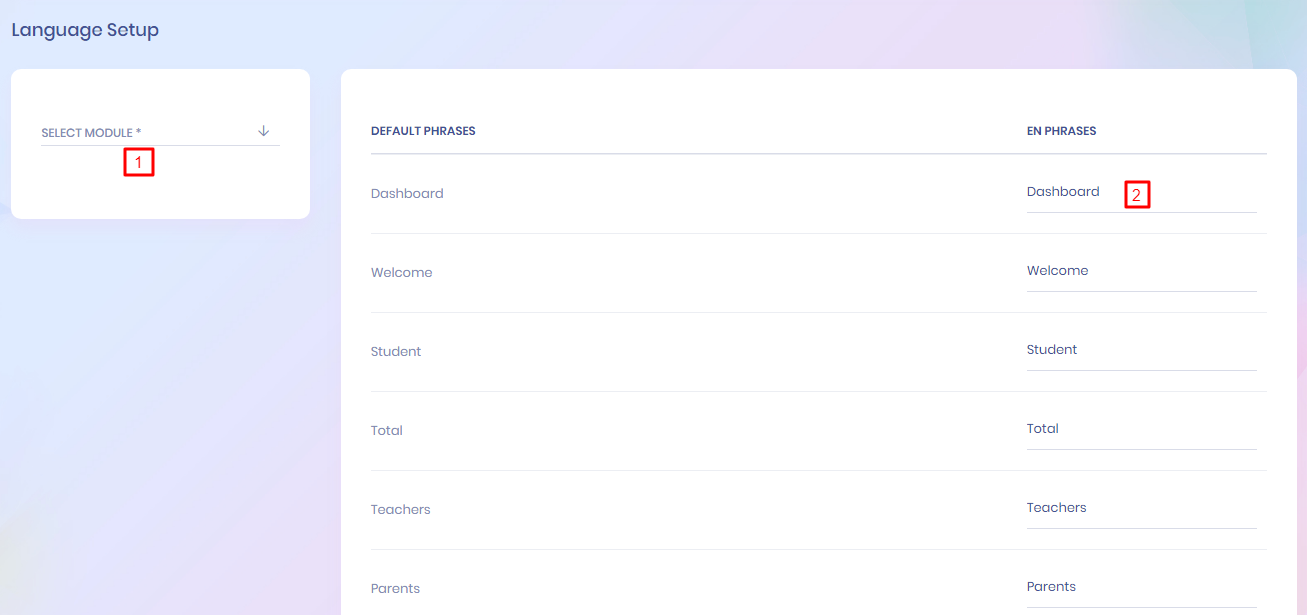
1. Chnage language Phrases
You can change phrases according to your language
Backup
Backup

1. Backup
You can create backup from your system, You can also resote data from your local pc.
2. Images Backup
You can create all images backup from your system, You can also download into your local PC for safety.
3. Whole System Backup
You can create whole system backup.
4. Database Backup
You can also create database backup and download, restore, and delete
Header Option

Customize Header Option
You can easily customize header option by using toggle button. The toggle button allows the user to change a setting between two states.
Update System
Update System

Update System
If update version is available, then you can upgrade from here.
API Permission
API Permission

1. API Access
To access api, fcm key is necessary to fill up.
Student Profile
EdPel Student Profile

1. Student Profile
Student can see his Profile,fees statement,examination,document and Student Record means if assign multiple class class .the profile includes personal information,parent,transport,dormitory, other information and so on.
2. Wallet

1. Add Wallet
Student Can Add Wallet Ballance ,after Admin approve amount show (3)balance/p>
2. Refund Wallet
Student Can Add Wallet Ballance
2.Wallet Balance
show Wallet Ballance after Admin approve
Fees
EdPel Fees

1. Add Fees
Fees statement lists are shown and if fees are not paid yet then student is able to pay his fees through Bank ,Paypal Paystack and others.
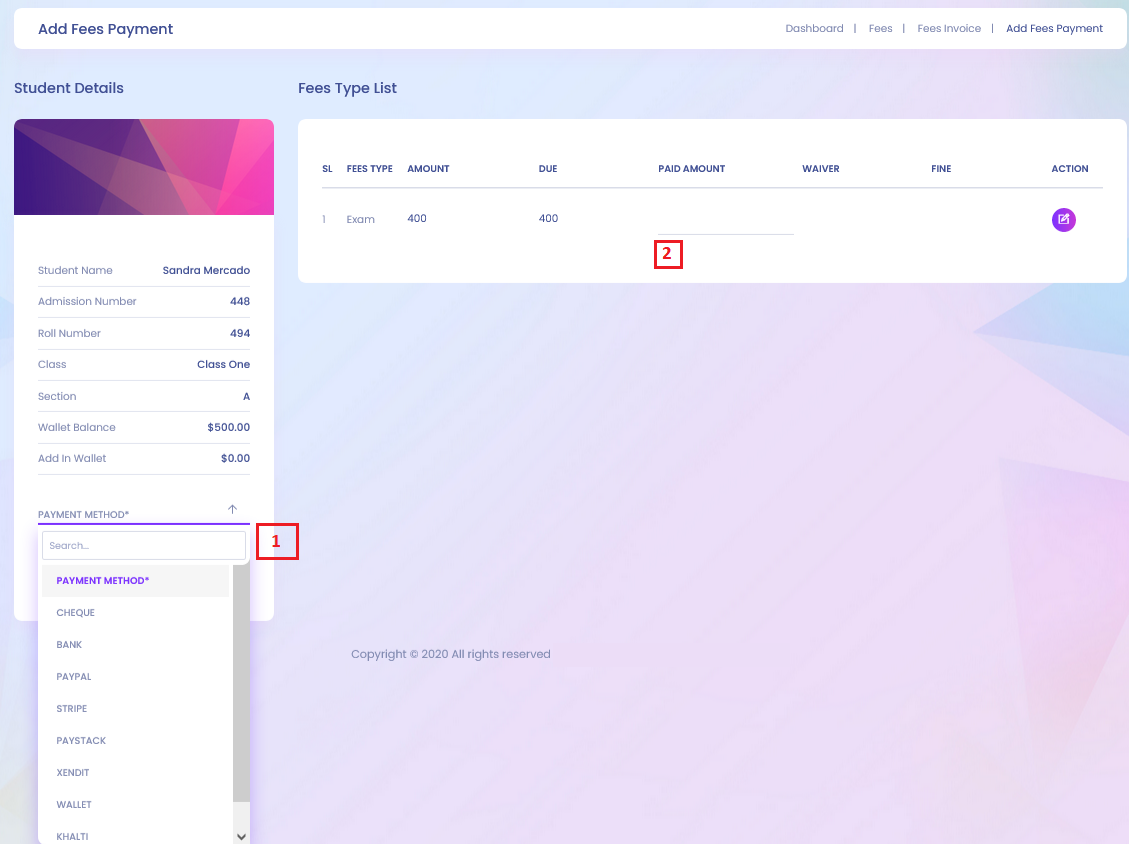
1. Payment Methody
Fees statement lists are shown and if fees are not paid yet then student is able to pay his fees through Bank ,Paypal Paystack,Wallet and others.
Class Routine
EdPel Class Routine

1. Class Routine
Class routine are shown here. Class routine module has the capability to set routines section wise for a particular class. Admin can add, edit or delete any class routine and there is a print button associated with every class routine for printing
Lesson Plan
EdPel Lesson Plan

1. Lesson Plan
Student can view their lesson plan
Lesson Plan Overview
EdPel Lesson Plan Overview
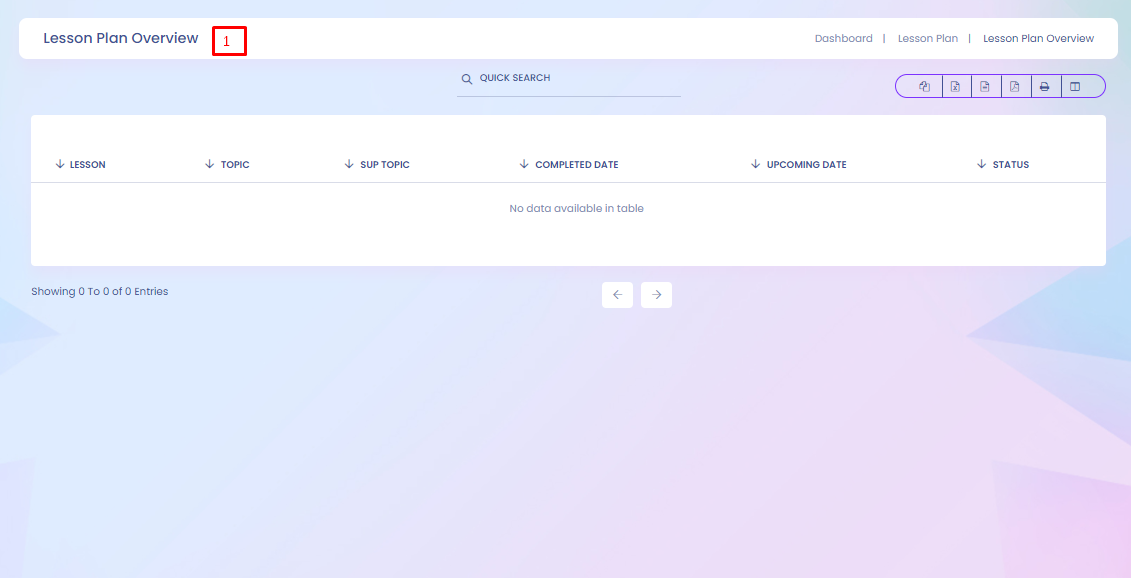
1. Lesson Plan Overview
By clicking the Lesson Plan Overview student Can See their lesson plan and others status about his lesson plan.
Homework
EdPel Homework

1. Homework List
Homework list with complete and incomplete status are shown.
2. Select Action
Student can see the homework's full detail view in the action section.
Assignment List
EdPel Assignment List

1.Assignment List
Students can view the assignment list
2. Select
In the actions option,students can view and download the file.
Syllabus List
EdPel Syllabus List

1. Syllabus List
Students can view the syllabus list
2. Select
In the actions option,students can view and download the file.
Other Downloads
EdPel Other Downloads

1. Other Downloads
Students can view the other downloads list
2. Select
In the actions option,students can view and download the file.
Attendance
EdPel Attendance

1. Search
You can search attendance by select month & select year
2. Attendance result
You can view more details
Examinations
EdPel Examinations

1. Result
Students can view their results from here.
Exam Routine
EdPel Exam Routine

1.Select Criteria
To search exam routine ,students have to select exam term
Apply Leave
EdPel Apply Leave
1. My remaining leave
In this list, student can see his remaining days of leave, extra taken leave and the total days for a particular leave type.
2. Add Apply leave
Student can the apply leave, by adding the date, leave type, which date to which date, the reason etc.
3. Select Action
The leave list will show all the leaves which is available.In this list, view/edit and delete options are includes in action column.
Pending Leave
EdPel Pending Leave

1. Pending list
In this list, student can see his pending leave.
Online Exam
EdPel Online Exam


1. Online Active Exams
Which exams are active that are shown here.
2. Take Exam
Student can take examination if they want.
2. Take Online Exam
After completion of online exam, student can submit his exam answer.
1. Upload Backup
Our system will help you to backup & restore your system. If you want to upload your database, then you can do it. But uploaded file must be sql file. Without sql file you can't upload it.
2. Images Backup
You can make whole image backup and download image as zip format.
3. Full System Backup
You can make whole full system backup and download as zip format. After downloading, you should delete system backup file from server.
4. Database Backup
You can take database backup and download.
5. Download
You can download from here
6. Restore
You can restore your backup
7. Delete
You can delete your backup
Notice Board
EdPel Notice Board

1. All Notice List
All the notice are listed here for student's acknowledgement.
1. System Status
It will show that current system version and upgrade version. Upgrade version always offers to you with new features, bug fixing. It will take you advance technology.
2. Update System
If update version is available, then you can upgrade from here. At first you have to read alert carefully, If you have to do anything, then do it before taking upgrade.
Subject
EdPel Subject

1. Subject list
Assigned Subjects are listed here.Student can see those.
Teachers
EdPel Teachers

1. Teacher list
Course teacher listed here.
Library
EdPel Library


1. Book List
All Books which are available in the library are shown here.
2. All Issued Book List
Which books are issued for this student are shown here.
Transport
EdPel Transport

1. Transport Route List
Student can see the transport routes with vehicle and also can see which are assigned for.
1. View Info
Full details of transport route are shown here.
Dormitory
EdPel Dormitory

1. Dormitory Room List
Dormitory and it's room information with which room is assigned for the student is listed here.
Student Profile
EdPel Student Profile


1. Student Profile
Parent Can See the Selected Student's Profile.
1. Create Homework
Administrator/Teachers can add homework for their students. After adding homework, students will get notification of their system panel.
- Compulsory fields for homework
- Class *
- Section *
- Subject *
- HomeWork Date *
- Submission Date *
- Marks *
- Description *
2. Update Homework
- Evaluation homework
- Edit homework
- Delete homework
3. Search Homework
Administrator/Teachers can search homework for their students homework
4. Add Homework
Administrator/Teachers can add homework for their students
4. Update Homework
5. Homework Evaluation
Here Teachers can create Homework for their Class-Section. After creating homework teachers can evaluate homework for class-section students that who has completed homework or not completed. First we will Add Homework then we will evaluate homework. Homework- Go to Homework > Add Homework Here you can see all previously created homework and search them different criteria.
Student Fees Statement
EdPel Student Fees Statement

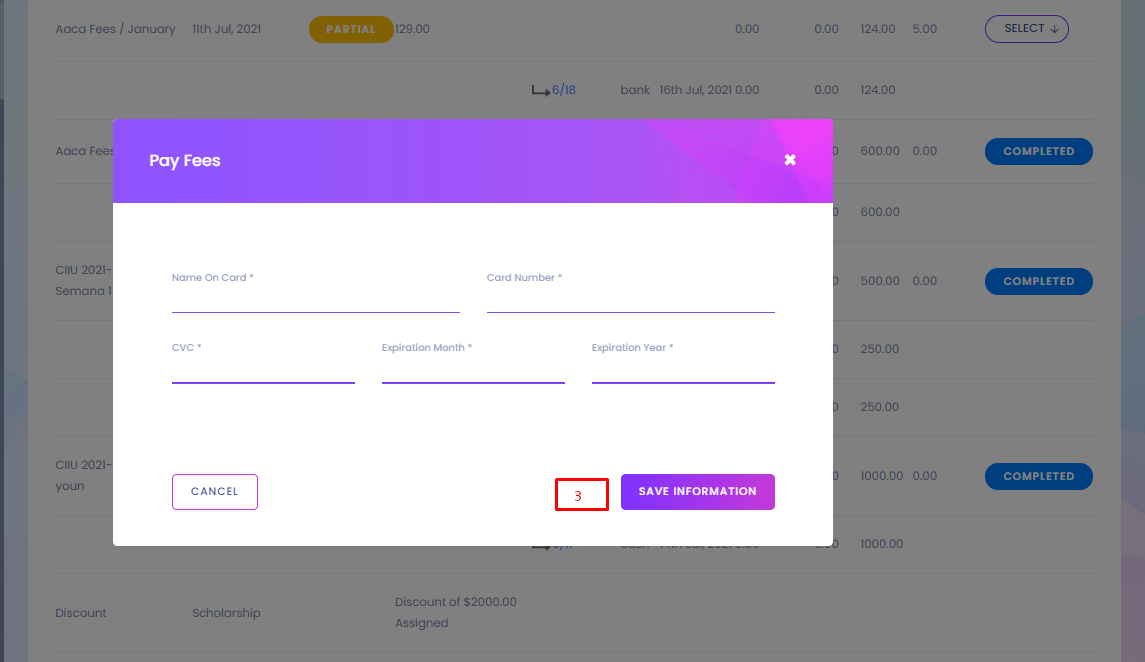
1. Student Fees Statement
Parent Can See the particular student's fees statement,fees status which is paid or not.
2. Select Actions
The action includes two online payment options such as Paypal and Stripe.
3. Collect Fees Online Via Card
Parent Can pay the fees through online via cards.
Student Class Routine
EdPel Student Class Routine

1. Class Routine
Parents can view class routine
Homework list
EdPel Homework list

1. Homework list
Parents can find all the homework list here.
Student Attendance
EdPel Student Attendance

1. Search Attendance
Parent can search the student attendance.
2. Attendance Result
In this section attendance results are shown.Attendance result show the certain month attendance which is remarked by present(P),late(L),absent(A),Half Day(H) and Holiday(F)
Student Attendance
EdPel Student Attendance
1. Search Attendance
Parent can search the student attendance.
2. Attendance Result
In this section attendance results are shown.Attendance result show the certain month attendance which is remarked by present(P),late(L),absent(A),Half Day(H) and Holiday(F)
Notice Board
EdPel Notice Board

1. All Notices
Parent can see the notice list which is selected for parents.
Subjects
EdPel Subjects

1. Student assigned Subjects
Parent can see which subjects are assigned.
Teacher List
EdPel Teacher List

1. Student assigned Teacher List
Parent can see the teachers list whom are assigned.
Transport List
EdPel Transport List

1. Student Transport List
Parent can see the transport route and assigned vehicle.
Dormitory
EdPel Dormitory

1. Student Assigned Dormitory
Dormitory list and assigned dormitory are seen in this module.
Student Admission
EdPel Student Admission
1. Import Student
For importing new student, teacher have to click the import student button.
2. Add Parents
For adding new student, teacher have to fill up all the major and pros and cons information. In this case, if new student has any sibling then teacher can able to add the sibling by clicking Add Parents button.
3. Relation With Guardian
Who will take the responsibility that have to include in this form. Before admin teacher have to specify the relation with the student.
4. Add Student
After adding all the information correctly then teacher can able to add the new student by clicking the save student button.
5.Download Sample File
Before import new student information, by clicking the download sample file, teacher can download the sample student information excel file.
6.Student Import
For import external information file, teacher have to select the class, section and attach the excel file.
1. Bulk Import of Students
Students can be imported from a csv file for adding multiple students at a time. Form the admin panel, under the menu student information, you can get a sub menu 'Student Admission'.
2. Add Parents
3. Relation With Guardian
4. Add Student/ Admission
Admitting new students to the school can be done from ‘admit student’ submenu under ‘student’ in the navigation. For adding a student, admin will need to fill up the information required and provided by the admission form. It should be kept in mind that, admitting new student will automatically create an enrollment in the running session for the selected class. Check and recheck the information you have inserted while adding student because once you admit him/her to a class, you will not be able to change his/her class without promoting him/her to the next session.
4.Download Sample File
4.Student Import
Clicking there will lead you to a new page. The method of importing is cited on that page. Follow those to successfully import students using a csv file.
Student List
EdPel Student List
1. Add Student
To add a new student, just click the right-top add click button.
2. Search Student
For searching the individual student have to select the class, section, student name or student roll id. By selecting the class and it's section can able to see the particular section's student list.
3. Select Student
In the list, view student's detail information,edit and delete are included in action column.
4. Student Details
By clicking the view option in action column, teacher can enter the student's details information page. Where he can able to see the student's details information in different classification.
5.Sibling Information
Sibling information is also included in this student detail information page.
6.Student Profile
Student information is classified in different section, student profile is one of them. All the personal information are shown in this student profile section.
7.Edit Student
If wants, it's possible to edit the student information by clicking the top-rightedit button.
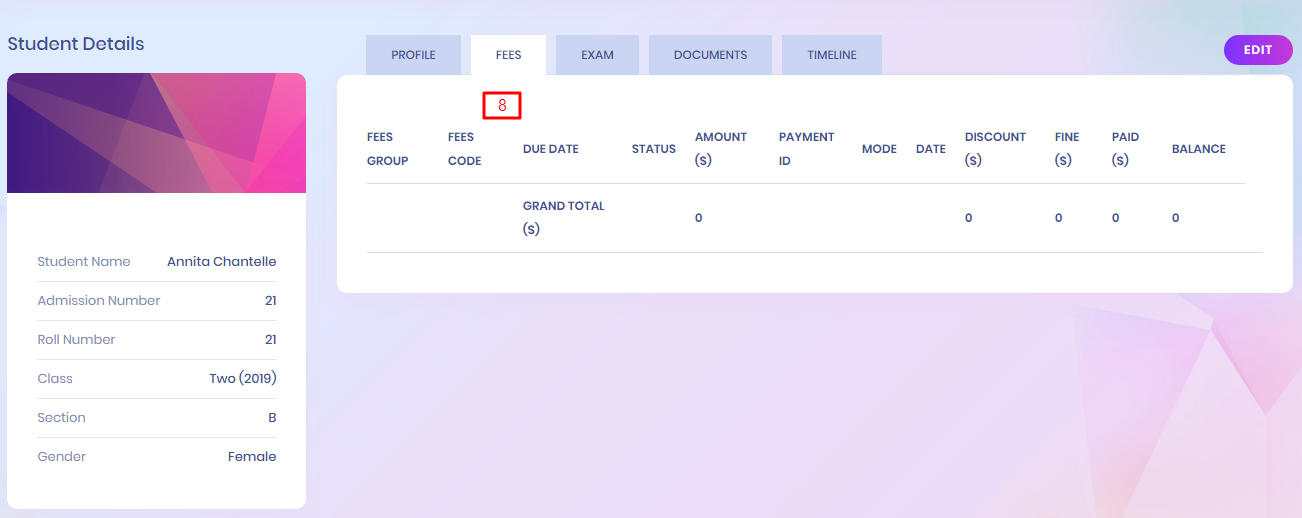
8.Student Fees
All the particular student fees information are shown in this portion.

9.Document
All the particular student all the document information are shown in this document portion.

10.Timeline
All the particular student's timeline information are shown in this timeline portion.
11. Add Timeline
Add timeline option is available in the timeline page.
Student Attendance
EdPel Student Attendance
1. Search Student Attendance
To search the student attendance, class, section and the attendance date. Daily attendance is shown on the menu class wise. For taking or viewing attendance for a particular class, firstly admin will need to select the date and the section which will bring the attendance managing form for that class section for that particular date.
2. Mark Holiday
If the searched day is holiday then teacher can able to mark the day as holiday by check the mark holiday button.
3. Save Attendance
Teacher can able to add attendance students. If anyone absent then check the absent, if present then check the present. Late and half day also can be checked.
Student Attendance Report
EdPel Student Attendance Report
1. Search Student Attendance Report
To search the student attendance report, class, section, month and year should have to select.
2. Select Student for Report showing
The search result will show in this report. If wants to see the individual students attendance then just click on the '+' symbolic button then see the all the days of a month report.
Subject Wise Attendance
EdPel Subject Wise Attendance
1. Search Subject Wise Attendance
To search the Subject Wise attendance, you have to select class, section ,subject and the attendance date.
2. Mark Holiday
If the searched day is holiday then teacher can able to mark the day as holiday by check the mark holiday button.
2. Save Attendance
Teacher can able to add attendance students. If anyone absent then check the absent, if present then check the present. Late and half day also can be checked.
Subject Attendance Report
EdPel Subject Attendance Report
1. Select Criteria
To search the subject attendance Report, you have to select class, section ,month and year.
Student Category
EdPel Student Category
1. Add Student Category
For adding student category, student type have to added.
2. Select Actions
Teacher can able to edit and delete the student category list.
Student Group
EdPel Student Group
1. Add Student Group
For adding student group, student group name have to added.
2. Select Actions
Teacher can able to edit and delete the student group list.
Student Promote
EdPel Student Promote
1. Search Student Promote
To search student promote list, year and class have to select.
2. View Academic Performance
In the list, by clicking the view academic performance button, user can able to see the detail academic performance.
3. Student Promote
In the promote student in next session, After selecting the pass or fail, teacher have to select the promote session and promote class.
This module is designed to promote students of a particular class to the next class in the next session. ‘Student Promotion’ submenu will be found under the menu ‘student’ in the admin panel. To promote students to the next class, admin needs to select the present class of the students and the class where he/she wants to promote the students. The present session which has been already set from the system settings will be selected automatically as the present session and the next session will be automatically calculated by the software.
Disabled Students
EdPel Disabled Students
1. Search Disabled Students
To search the disabled student list,class is required and if need to find the individual then the section, name and roll is needed.
2. Select Actions
In the disabled students list, teacher can view, edit and delete the list item.
Assign Optional Subject
EdPel Assign Optional Subject
1. Search Assigned Optional Subject
For searching assigns optional subjects, first you have to need to select class, section and select subjects for a particular class and it's an individual section..
2. Assigned Optional Subject List
In this list, particular subjects and it's assigned course teachers are shown. If assign new subjects just select assign Subjects .Then click Assign Subject button for saving this list
Class Routine
EdPel Class Routine

1. Add Class routine
In the class routine submodule, by selecting the class and section teacher can see the particular class routine. Where by clicking on the (+) symbol admin can assign the class routine.
2. Assigned Class routine
Assigned class for particular day and period are shown on the class routine list.
3. Create Class routine
To create class routine just click on the particular period of a day. Here have to select subject, teacher and class room.
Assign Subject
EdPel Assign Subject
1. Search Assigned Subject
Select class and section for searching assigned subjects for particular class and it's individual section.
2. Assigned Subject List
In this list, particular subjects and it's assigned course teachers are shown. If assign new subjects just click the right-top assign Subject button.
3. Search Assign Subject Create
For assign subjects list, search by selecting the class and section.
4. Assign Subject Create
For assign subject select the teacher in the teacher section.By clicking the delete button, subject will be deleted.By clicking the save button the subjects will assigned.
Assign Class Teacher
EdPel Assign Class Teacher
1. Assign Class Teacher
For assigning class routine, class, section and teachers should have to select. The Assigned class teacher list will show in the Class Teacher List. Here teacher list can be edited and deleted.
2. Select
In the class teacher list, all information are shown in details. Teacher can edit & delete the teacher list.
Subject
EdPel Subject
1. Add Subject
To add subject, the subject name,the subject code should be added and check the theory or practical which type of subject is it.
Subject list can be edited and deleted by the teacher.
Class
EdPel Class
1. Add Class
To add Class, the class name and section or sections should be added.
Class list can be edited and deleted by the teacher.
Sections
EdPel Sections
1. Add Section
To add section, the section name should be added.
2. Select Section
Section list can be edited and deleted by the teacher.
Class Room
EdPel Class Room
1. Add Class Room
To add class room, room number and capacity should be added.
2. Select Section
Class room list can be edited and deleted by the teacher
Class Time Setup
EdPel Class Time Setup

1. Add Time
To add time, period, start and ending time should be added.
2. Select Section
Time list can be edited and deleted by the teacher.
Upload Content
EdPel Upload Content
1. Upload content
To upload content, content type, available for which kinds of person, date the file you want to upload.
1. Select Actions
The uploaded content are listed in upload content list. In this list, user can edit, delete ,view and download the content.
Assignment
EdPel Assignment
1. Assignment List
The uploaded assignment will be shown in the assignment list.
2. Select Actions
Delete ,download and disable options are available in the action column.
Study Material
EdPel Study Material
1. Study Material List
The uploaded study material will be shown in the study material list.
2. Select Actions
Delete and download options are available in the action column.
Syllabus
EdPel Syllabus
1. Syllabus List
The uploaded syllabus will be shown in the syllabus list.
2. Select Actions
Delete and download options are available in the action column.
Other Downloads
EdPel Other Downloads
1. Other Downloads List
The uploaded other download materials will be shown in the other download list.
2. Select Actions
Delete and download options are available in the action column.
Designation List
EdPel Designation List
1. Add Designation
To add Designation, designation name should be added.
2. Designation List
Designation list can be edited and deleted by the teacher.
Departments List
EdPel Departments List
1. Add Departments
To add Departments, departments name should be added.
2. Departments List
Departments list can be edited and deleted by the teacher .
Staff List
EdPel Staff List
1. Search Staff List
To search the staff list,staff roles or staff id or staff name have to select.
In the action column in this list, teacher can view staff details, edit and delete the records.
2. Add Staff
By clicking the add staff button, super can enter the add staff page.
3. Add Staff
To add a staff, basic info, payroll, bank info, social links and necessary documents have to include.
4. Profile
Staff has several types of information. His profile is one of them. In his profile all the personal information are shown.
By Clicking the right-top button edit, possible to enter in edit staff details page.If wants can easily edit the staff records.
5.Payroll
Payroll information of a particular staff are shown in this page.
6.Documents
How much and which documents are downloaded in his profile are shown here.
7.Timeline
Timeline information of a particular staff are shown in this page.
Staff Attendance
EdPel Staff Attendance
1. Search Staff Attendance
To search the staff attendance list, role and date should have to select.
2. Mark Holiday
If the selected day is holiday,then by checking the mark holiday button, the day will be marked as holiday.
3. Save Attendance
After selecting the all the functionalities, just click the save attendance button and the attendance will be recorded.
Staff Attendance Report
EdPel Staff Attendance Report
1. Search Staff Attendance Report
To search the staff attendance report,select the role, month and the year. In this list full month attendance record of a particular staff are shown.
Payroll
EdPel Payroll
1. payroll Search
For searching the staff payroll list, just select the role,month and the year.
2. Staff List
Staff payroll list show the search result. In this list, payroll status show payroll is generated or not. If not then just clicking the generate payroll teacher can enter the generate payroll page.
3. Generate Payroll
In the generate payroll page, earning, deductions, payroll summary should have to full up when generate payroll.
Payroll Report
EdPel Payroll Report
1. Search payroll Report
For searching the staff payroll report list, just select the role, month and the year.
2. Staff List
Staff payroll report list show the search result. In this list, payroll's all the information of staff are shown.
Approve Leave Request
EdPel Approve Leave Request
1. Approve Status
In this submodule, apply leave lists are shown. Here which leave is approved or not yet that are shown in the status column.
2. Select Action
In this Action column, view/edit and delete options are includes.
3. View or Edit Leave Details
In this modal, teacher can see the detail and he change the approve status if he wants.
Apply Leave
EdPel Apply Leave
1. My remaining leave
In this list, Teacher can see his remaining days of leave, extra taken leave and the total days for a particular leave type.
2. Add Apply leave
Teacher can the apply leave, by adding the date, leave type, which date to which date, the reason etc.
3. Select Action
The leave list will show all the leaves which is available.In this list, view/edit and delete options are includes in action column.
Leave Define
EdPel Leave Define
1. Add Leave Define
By adding the role, leave type and the days teacher can able to define the leave.
2. Select Action
The leave define list is shown all the defined leaves.In this list, edit and delete options are includes in action column.
Leave Type
EdPel Leave Type
1. Add Leave Type
By adding the type name teacher can able to add the leave type.
2. Select Action
The leave type list is shown all the leaves type.In this list, edit and delete options are includes in action column.
Add Exam
EdPel Add Exam
1. Add Examination Name
Teacher can add examination name. He has been allowed to edit and delete the examination name.
2. Exam Setup
By clicking the Exam Setup button teacher can enter the exam setup page.
Exam Schedule
EdPel Exam Schedule
1. Add Exam Schedule
By Clicking the right-top button add exam schedule teacher enter the exam setup schedule page.
2. Search Exam Schedule
To search the exam schedule teacher have to select the exam name, class and section. The assigned exam routine is shown in the exam schedule section.
3. Search for Set Exam Schedule
After clicking the add exam schedule button super will enter Exam Schedule create page. In this page, by selecting the exam name, class and section teacher will get the set exam schedule section.
4. Assign Exam Schedule
To assign exam schedule just click the (+) symbol, then teacher will get the create exam routine modal.
5. Assigned exam Schedule
If any exam schedule is assigned then the assigned exam schedule is shown in this list.

6. Create Exam Routine
just select the date and the room number teacher can setup the exam routine for particular subject in particular date and time.
Marks Grade
EdPel Marks Grade
1. Add Grade
To add certain mark's grade,teacher need to add grade name,it's GPA, percentage range ,gpa range etc.
2. Select Section
Teacher can edit and delete the grade list.
Send Marks Via SMS
EdPel Send Marks Via SMS
1. Send Marks Via SMS
Mobile SMS is the modern system for checking the Result and all other exams result. The students and their parents can check Result using Mobile SMS quickly within a while
Add Homework
EdPel Add Homework
1. Add Homework
To add homework, class, section, subjects, date, submission date, marks and description are needed to submit.
2. Select Action
In the action column, evaluation, edit and delete options are include.
3. Search Homework list
To search homework list, class, section, subject are needed to select.
4. Add homework
By clicking the add homework teacher can add new homework.
5. Evaluation homework
Teacher can evaluate the homework by clicking the evaluation option in action column.In evaluation homework, students are evaluated by marks, comments, homework status.
6. Evaluation Date
Evaluation date should have to select before evaluation page submit.
Homework Evaluation Report
EdPel Homework Evaluation Report
1. Search Homework Evaluation Report
To search homework evaluation report, class, section, subjects should have to select.
2. Select Action
Homework evaluation report list are show the search result. By clicking view option full evaluation of a particular home can be seen.
Notice Board
EdPel Notice Board
1. All notices
Teacher can see all the notices which is select for.
2. Add notice
Teacher can add new notice by clicking the add notice button.
Send Email
EdPel Send Email
1. Send email or SMS (Group)
Teacher can send email or sms by checking in send through check box. Title and description is also mandatory field.
If he wants to send this to several receiver then he can select several receiver in the group section.
2. Send email or SMS (Individual)
If he wants to send this to individual receiver or certain role receiver then he can select role of the receiver and select the name or names in the individual section.
3. Send email or SMS (Class)
If he wants to send this to particular class students then he can select a class and certain section in the class section.
Email / Sms Log List
EdPel Email / Sms Log List
1. Email / Sms Log List
All the email and sms which is send that are listed here. If wants to send new email or sms then just click the Send Email/Sms button.
In the list, email or sms receiver list are shown. This are group, individual and class.
Event List
EdPel Event List
1. Add Event
To add event, event title, for whom,event location, start date, to date, description and attach file are needed. The event list will show all the event which are added.In the list, event can be edit and delete are possible.
Book Categories
EdPel Book Categories
1. Book Categories
If Teacher wants he can add new book category in this submodule. All the book category list is shown in Category list.
Subject List
EdPel Subject List
1. Add Subject
Teacher can add new library member. In this case Subject name and Subject Code is necessary to fill up.
2. Subject List
Subject lists are shown in subject list. Teacher can edit and delete the question bank list.
Add Book
EdPel Add Book
1. Add Book
Teacher can add book which is available in the library. For adding book, book title, category, subject is mandatory. For proper book details information need to fill up all the field in this form.
Book List
EdPel Book List
1. Book List
All the books which are available in the library are shown in this book list.Super Admin can edit and delete the book information if he wants.Add Member
EdPel Add Member
1. Add Member
Teacher can add new library member. In this case member type and member id is necessary to fill up.
2. Cancel member list
Library member lists are shown in member list. Teacher can cancel the member if he wants.
Issue Books
EdPel Issue Books
1. Issue Books
All the members of the library are shown in this list. Where teacher can issue or return book/books to him.
2. Issue or Return Books
By clicking the Issue/Return Books teacher can able to issue book to the library member and if want he can return book.
Issued Book List
EdPel Issued Book List
1. Search Issued books
By selecting book name or book id or subject teacher can see the issued book list.
Dormitory Rooms
EdPel Dormitory Rooms
1. Add Dormitory Rooms
teacher can add dormitory Rooms which should have to include dormitory name, room number, room type, bed number and it's cost.
2. Select Action
In the dormitory room list, teacher can able to edit and delete the dormitory room information.
Dormitory List
EdPel Dormitory List
1. Add Dormitory
For adding dormitory teacher need to add dormitory name,type and how much allotment are possible in this dormitory.
2. Select Actions
Edit and delete option are permitted for teacher.
Room Type
EdPel Room Type
1. Add Room Type
Which kinds of rooms are available in the dormitory, Teacher can add this.
1. Select Actions
Teacher admin can edit and delete the room type list.
Student Dormitory Report
EdPel Student Dormitory Report
1. Search Student Dormitory Report
For searching student dormitory list class, section and dormitory name should have to select.
Transport Route
EdPel Transport Route
Transport Route
This module has 3 sections -
- Routes
- Vehicles
- Assign Vehicle
- Student Transport Report
First we will add Routes then add Vehicles then Assign Vehicle on Routes then check Student Transport Report.
Routes- Go to Transport > Routes enter Route Title, Fare & click Save button. All the routes can be see right side at this page.
Go to Transport > Vehicles enter Vehicle No, Vehicle Model, Year Made, Driver Name, Driver License, Driver Contact, Note & click Save button. All the vehicles can be see right side at this page. Student Transport Report- Go to Student Information > Student Transport Report here you can view all students list who has availed transport facility.
Vehicle
EdPel Vehicle
Assign Vehicle
EdPel Assign Vehicle
Student Transport Report
EdPel Student Transport Report
Header Menu Manager
EdPel Header Menu Manager

1 .Home Page Section
In the admin setup, super admin can setup menu different criteria which are sorted by their type
Home Page
EdPel Home Page

1 .Home Page Section
Super admin can update background image (which will also be used as background image), title, title,heading,short description.
News Heading
EdPel News Heading

1. Update News Heading Section
If you want to update news section on news page , you have to need update title,description, main title, main description, button text ,button url & image of this section .
News List
EdPel News List

1. Add news
To add news , have to required title,select category ,image & description.

2. Select action
In the news list, all information are shown in details. Super admin can edit , delete and view the news list.
Course Heading
EdPel Course Heading

1. Update Course Heading Section
If you want to update news section on news page , you have to need update title,description, main title, main description, button text ,button url & image of this section .
Course Category
EdPel Course Category

1. Add Category
To add course category, category name and image are needed to submit.Image ratio should be minimum 1420*450 px
2. Select action
In the action column, edit and delete options are include.
Course List
EdPel Course List

1. Add course
To add course , title,select category ,image ,overview, outline ,prerequisites , stats are needed to submit.

2. Select action
In the course list, all information are shown in details. Super admin can edit delete and view the course list.
Add Testimonial
EdPel Testimonial

1. Add testimonial
To add course name, designation, institution name ,image and description are needed to submit.
2. Select action
In the testimonial list, all information are shown in details. Super admin can edit delete and view the course list.This testimonial list will show on homepage's testimonial section
Contact Page
EdPel Contact Page

1. Contact Action
If needed to update contact page ,first goto dashboard , click front settings menu then click contact page . After you will see contact info list & click on edit option.

2. Edit
After click edit option you will see contact form. As your requirements ,then you can easily modify the contact page.
Contact Message
EdPel Contact Message

1. Contact Message
In the contact message list, all messages are shown from contacts page contact submitted form.
About Page
EdPel About Page

1. Select Action
After click edit option you will see about page form. As your requirements ,you can easily modify the contact page
Add Page
EdPel Page List

1. Add Page
To add page, title, slug and description are needed to submit.
2.Select Action
In the page list, all pages are shown .In the action column edit, view and delete options are include.
Footer Widget
EdPel Footer Widget

1. Footer Widget List
In this section, super admin can manage the footer section. Here Admin can manage (add, edit, remove) all the useful links which are located at footer section.